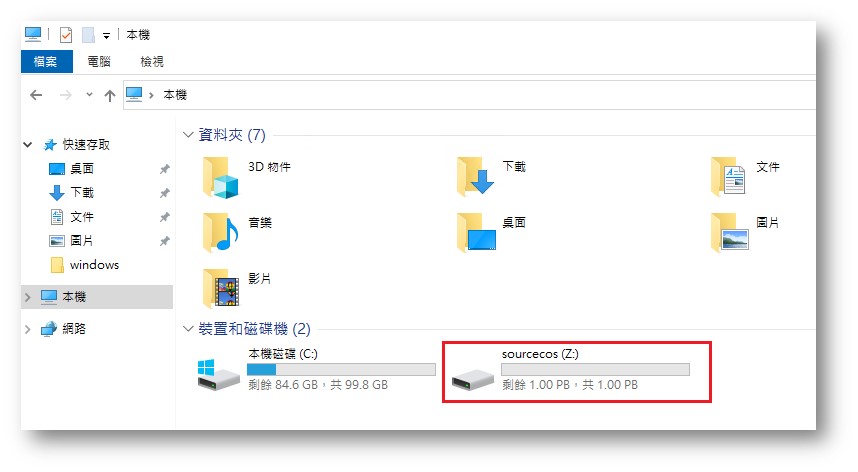
Virtual computing entityUpon setup, a 100 GB system disk is provided as storage space. In practical use, storing data on the system disk would cause management inconvenience; therefore, it's generally preferable to mount a virtual disk as the data disk. This article will provide a guide on mounting COS as storage space using Rclone for user reference.
Prerequisites
Create a Windows Server VCS instance. This guide uses the image win2022std_cht_t20241008 as an example.
Procedure
Step 1. Install Rclone on Windows
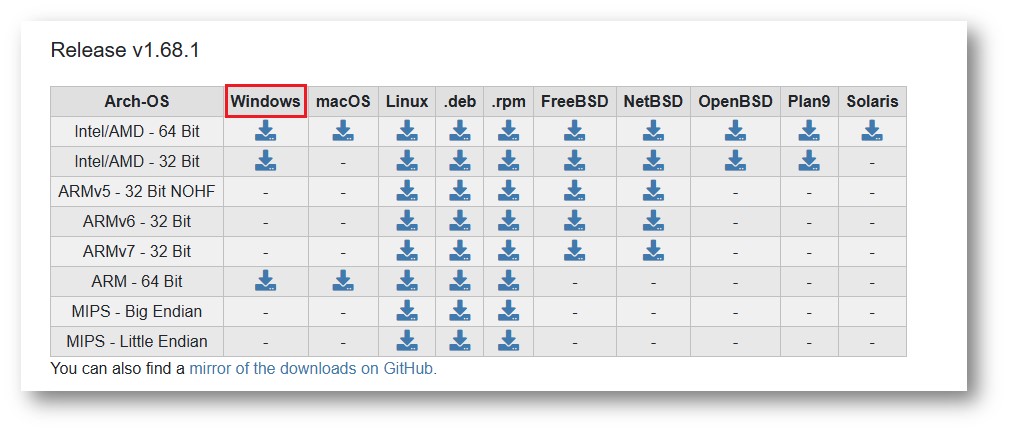
Go to the official Rclone website and download the appropriate version for Windows.
Step 2. Extract and Move the Folder
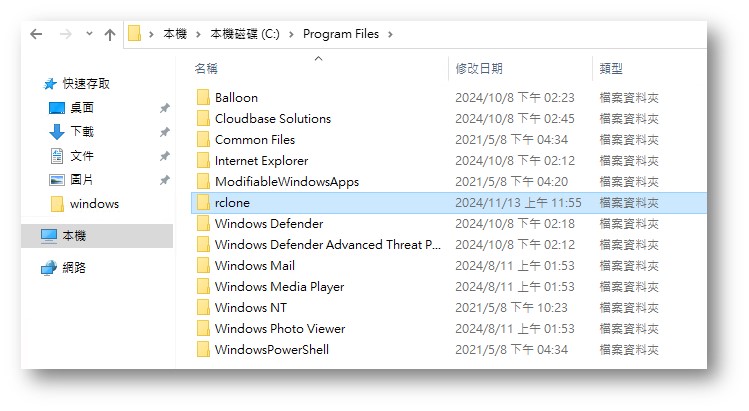
After extracting the downloaded file, rename the folder to rclone and copy it to C:\Program Files\.
Step 3. Configure Environment Variables
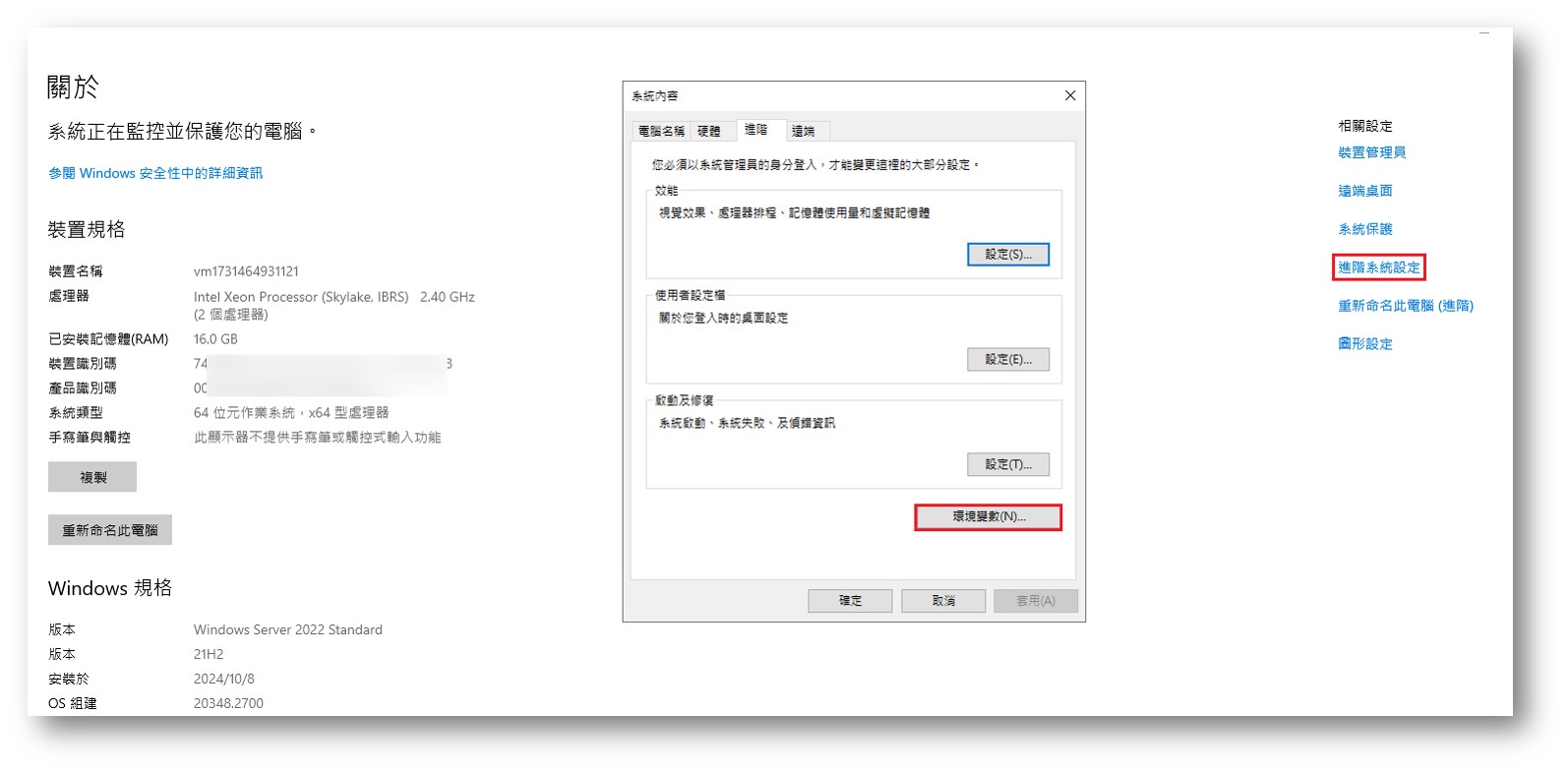
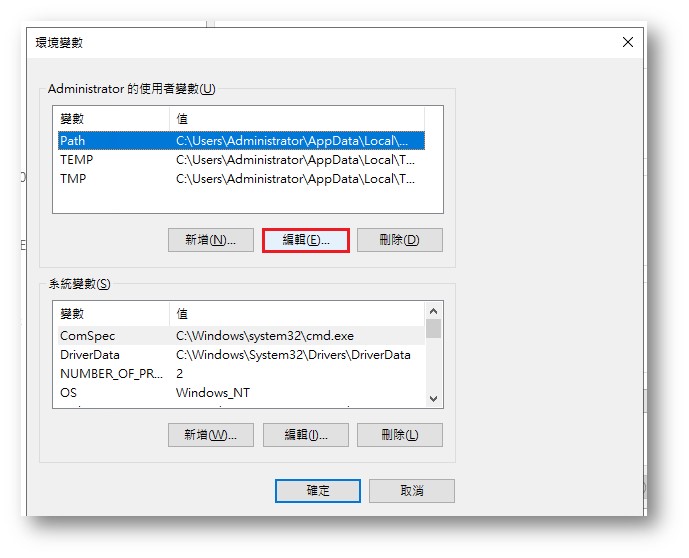
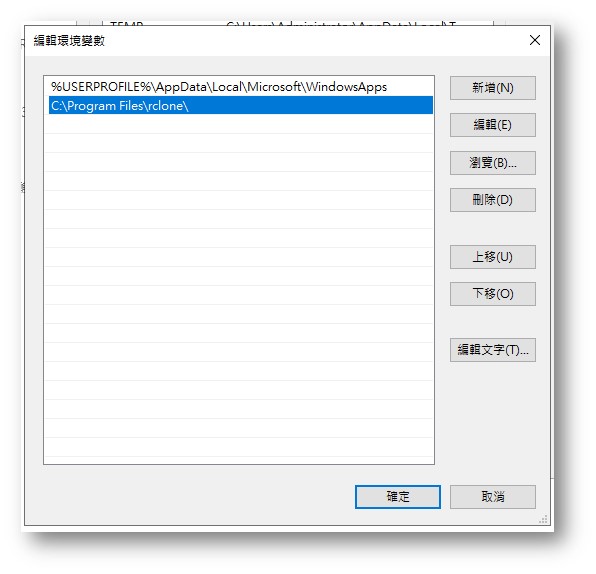
Open About > Advanced system settings > Go to Environment Variables > Select Path under "User variables for Administrator" > Edit > Add C:\Program Files\rclone\ to the path
Step 4. Verify Installation
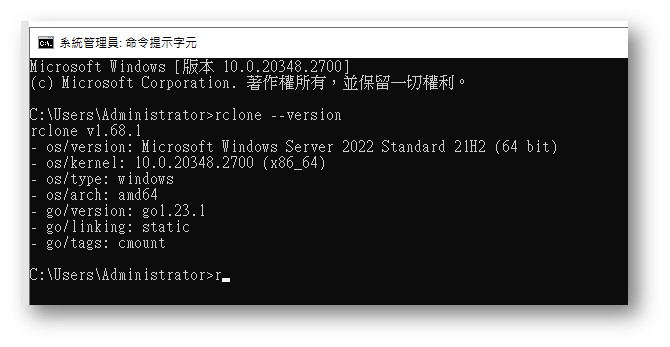
Open the Command Prompt (CMD) and type `rclone --version` to confirm the installation was successful.
Step 5. Install WinFSP
- Go to the official WinSFP website and download the installer.
- Run the WinFSP installer to complete the setup. (WinFSP is required for Rclone to mount drives on Windows).
Step 6. Configure COS in Rclone
Refer to this documentation (Step 2: Configure COS connection info) to set up a COS connection named sourcecos.
Step 7. Mount COS via Rclone
- Start PowerShell
- Execute the following command to mount COS as a network drive (Z:): PowerShell.exe -windowstyle hidden {rclone mount sourcecos: Z:}
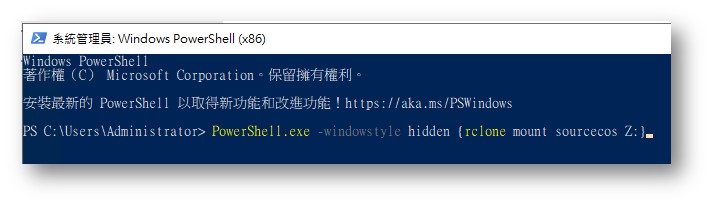
- Once successfully mounted, you will see the established bucket after clicking into the drive, allowing you to access and store files directly.