

VCS instances will continue to be billed while running. If you need to start an instance at a specific time and stop it at a specific time to save costs, please refer to the following instructions and steps to create a separate scheduled host and use the TWCC CLI tool to automate the stopping and starting of the target host, avoiding unnecessary billing expenses and effectively reducing costs.
At the same time, this approach can improve operational efficiency, reduce the time and manpower costs of manual operations, and ensure more accurate resource management. Through scheduling automation, users can flexibly control the VCS status, ensuring that the system starts when needed and shuts down when idle, achieving more efficient use of cloud resources.
- Definitions:
- Scheduling host: The host that has TWCC CLI installed and executes automatic scheduling jobs.
- Target host: The VCS you need to stop or start
* The scheduling host must be "not equal to" the target host for you to schedule automatic startup. Otherwise, if the schedule is installed directly on the target host, the schedule will become invalid after the host automatically stops, and you will have to manually start the target host through the platform webpage.
- How to automatically schedule the stopping and starting of VCS
Step 1. Install TWCC CLI on the scheduling host.
Please refer to:Install TWCC CLI on Windows and log in.
*Please ensure your scheduling host is powered on and the job scheduler is running for scheduling jobs to run.
Step 2. Obtain the necessary information
-
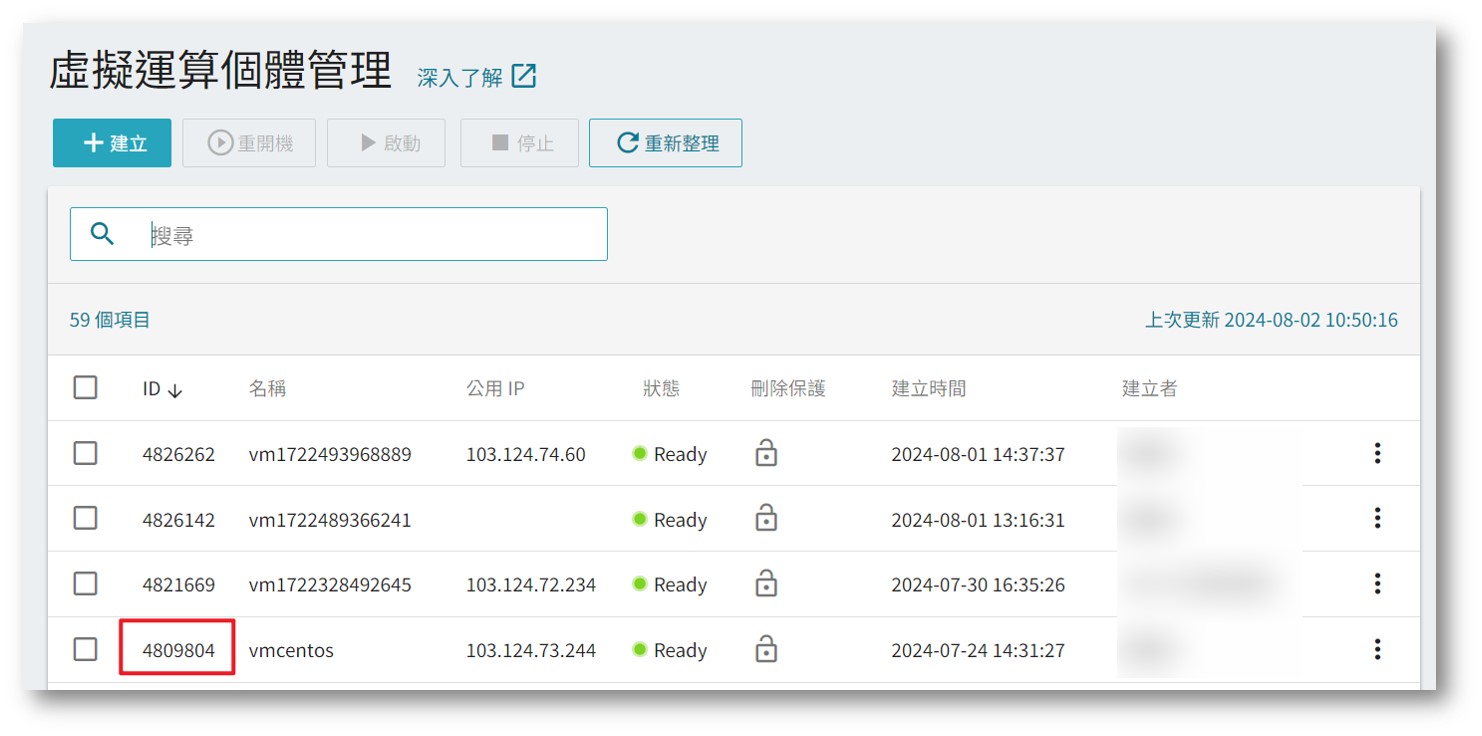
- Target host ID:
You can list your VCS and obtain the target host ID using `twccli ls vcs` on the platform's webpage or in PowerShell.
- Target host ID:

- Execution instructions
- Command to start VCS: twccli ch vcs -sts ready -s target_host_ID
- Command to stop VCS: twccli ch vcs -sts stop -s V target_host_ID
For the complete instruction set, please refer to:https://twcc-cli.readthedocs.io/en/latest/twccli-ch.html
Step 3. Set up automatic scheduling
The following steps are based on TWS Ubuntu 24.04 and Windows Server 2022 as examples. If the OS version is different, the process may be different. Please find the relevant process applicable to your version.
Ubuntu 24.04
Automatically start and stop VCS
- Edit crontab to automate scheduling
crontab -e
-
Click
iEnter INSERT mode -
Add the following start and stop cron jobs (and write the execution results to...)
/home/ubuntu/cronjob.log)
00 09 * * * /home/ubuntu/myenv/bin/twccli ch vcs -sts ready -s 4809804 >> /home/ubuntu/cronjob.log 2>&1 00 18 * * * /home/ubuntu/myenv/bin/twccli ch vcs -sts stop -s 4809804 >> /home/ubuntu/cronjob.log 2>&1
Reference documents:Linux crontab Routine Job Scheduling Tutorial and Examples
- Press
escEnter after:wq!Save and leave
Windows Server 2022
1. Automatically stop VCS
-
Start the job scheduler and create basic jobs.
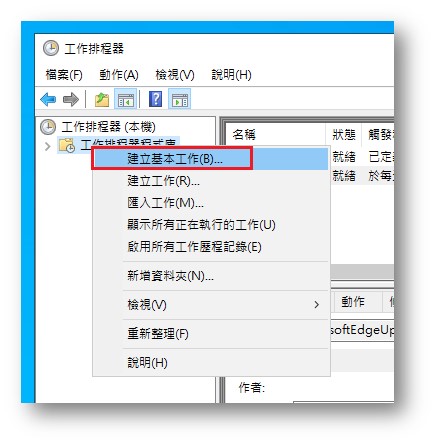
-
Set the schedule name and description (customizable).
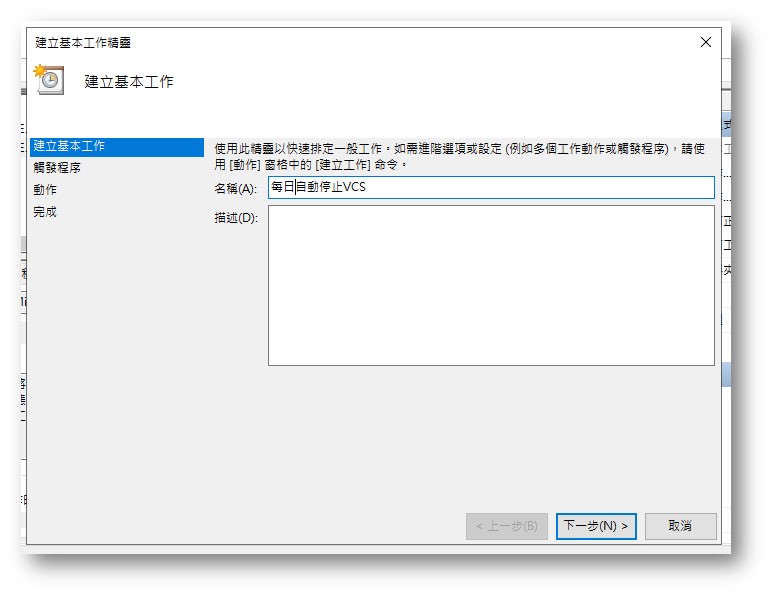
-
Set trigger procedure: Schedule time (customizable)
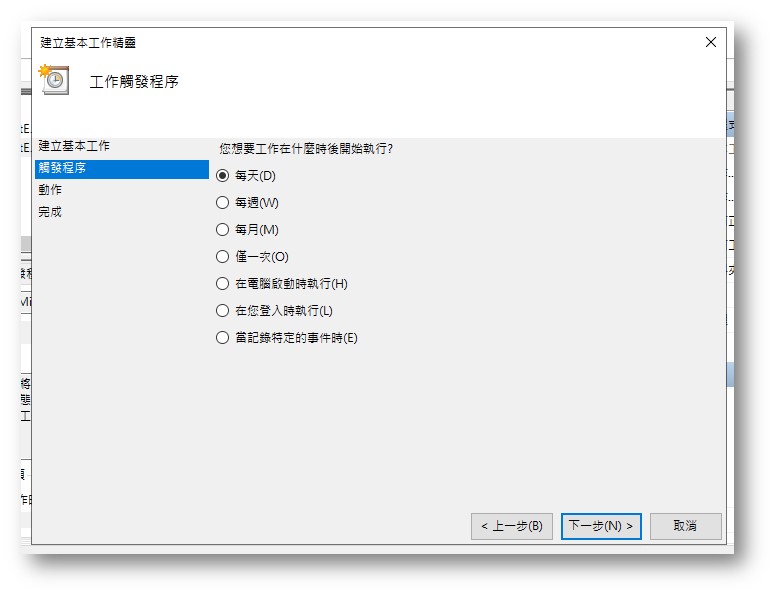
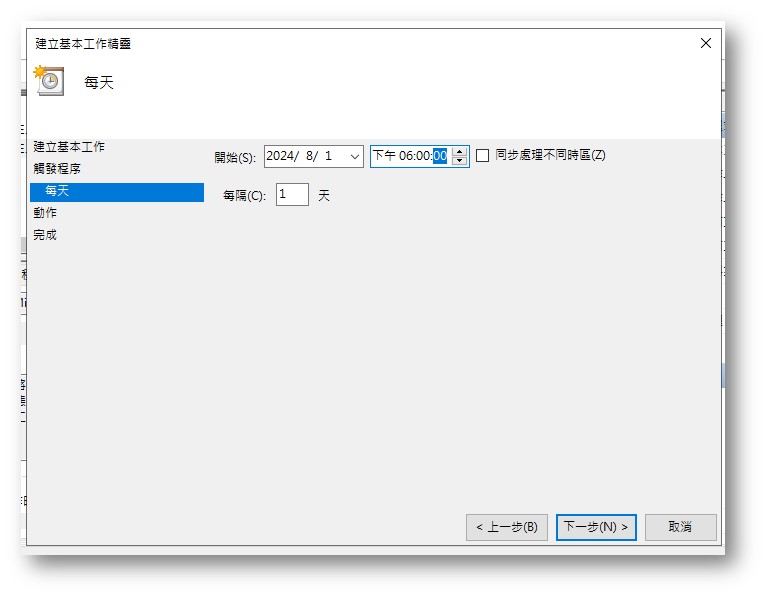
-
Action: Select the program to launch
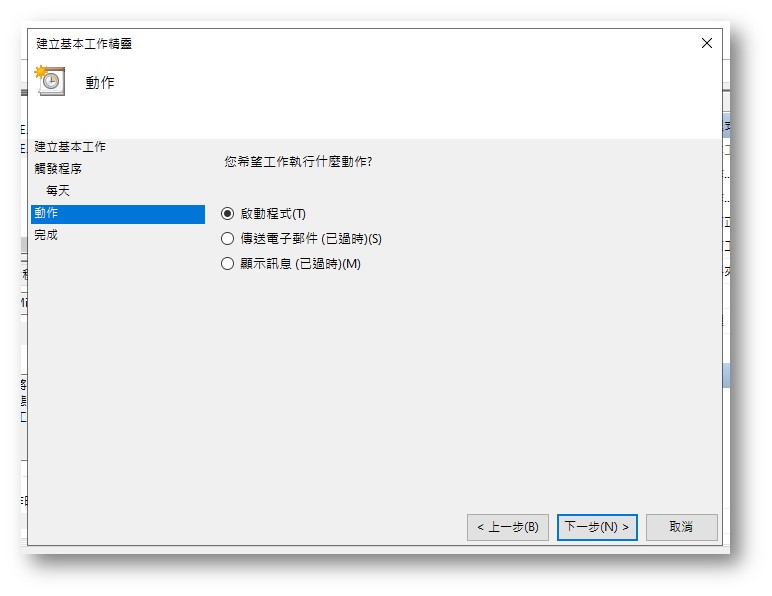
-
Program input
PowerShell -
Add a stop command to Step 2.
twccli ch vcs -sts stop -s 4809804
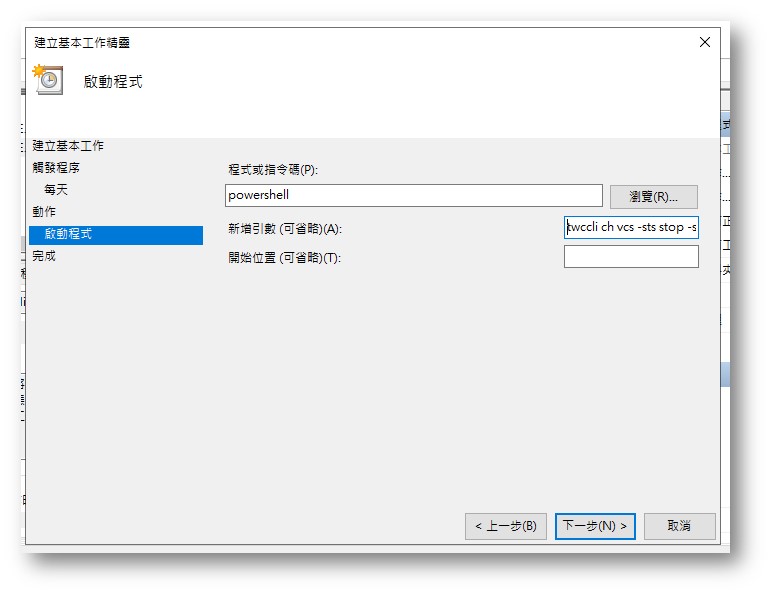
-
Confirm the information and click "Complete".
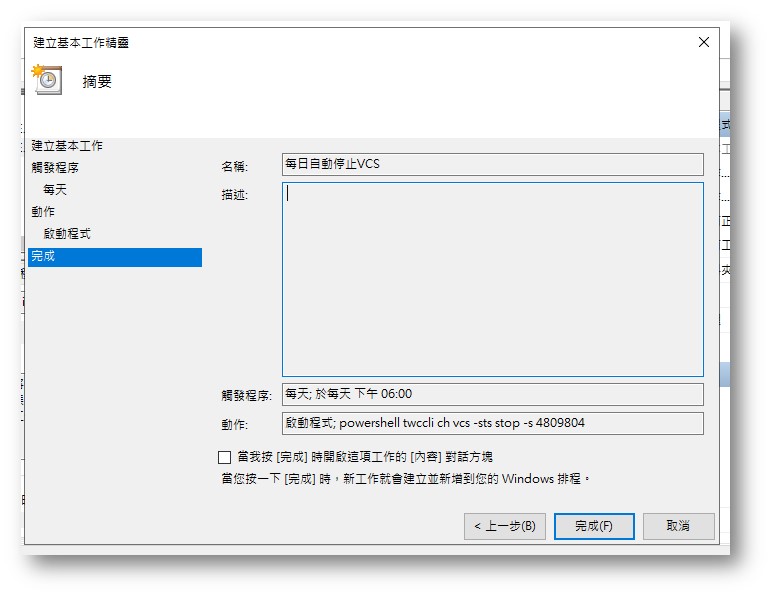
-
Enable all work processes and record scheduling logs.
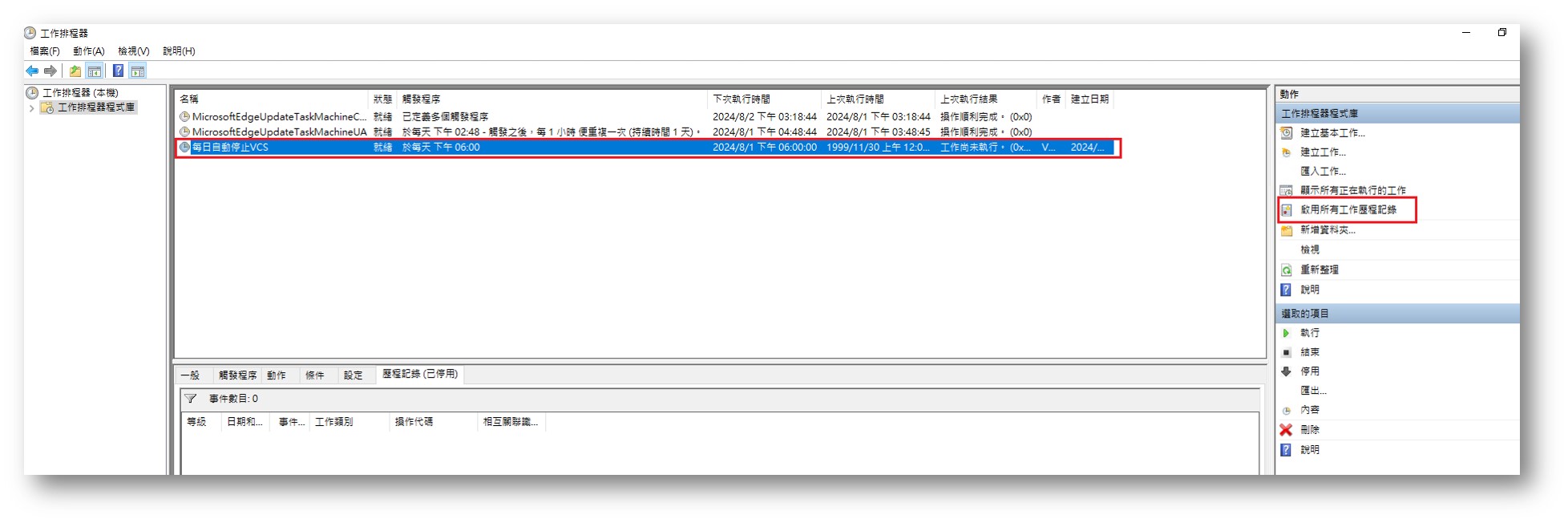
2. Automatically start VCS
repeat 1. Automatically stop VCS The steps are as follows: Create a separate basic job, set the startup schedule, and adjust the commands as follows. Please customize the schedule time according to your needs.
- Program input
PowerShell - Add a quote to the startup command in Step 2.
twccli ch vcs -sts ready -s 4809804
Step 4. Test automatic scheduling
You can first set the schedule time to 5 minutes from the current time and observe whether the schedule completes automatically as shown below. After confirming that it has completed, you can then set the schedule time back.
Ubuntu 24.04
- The following command can be used to confirm whether a cron job has been executed.
cat /home/ubuntu/cronjob.log
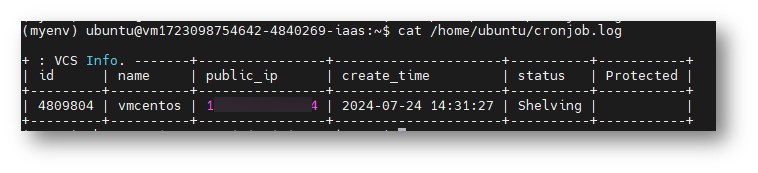
- The following command can be used to confirm that the final status of the VCS has changed to Stopped/Ready, indicating that the stop/start was successful.
twccli ls vcs 4809804

Windows Server 2022
- Last execution result: Operation completed successfully.
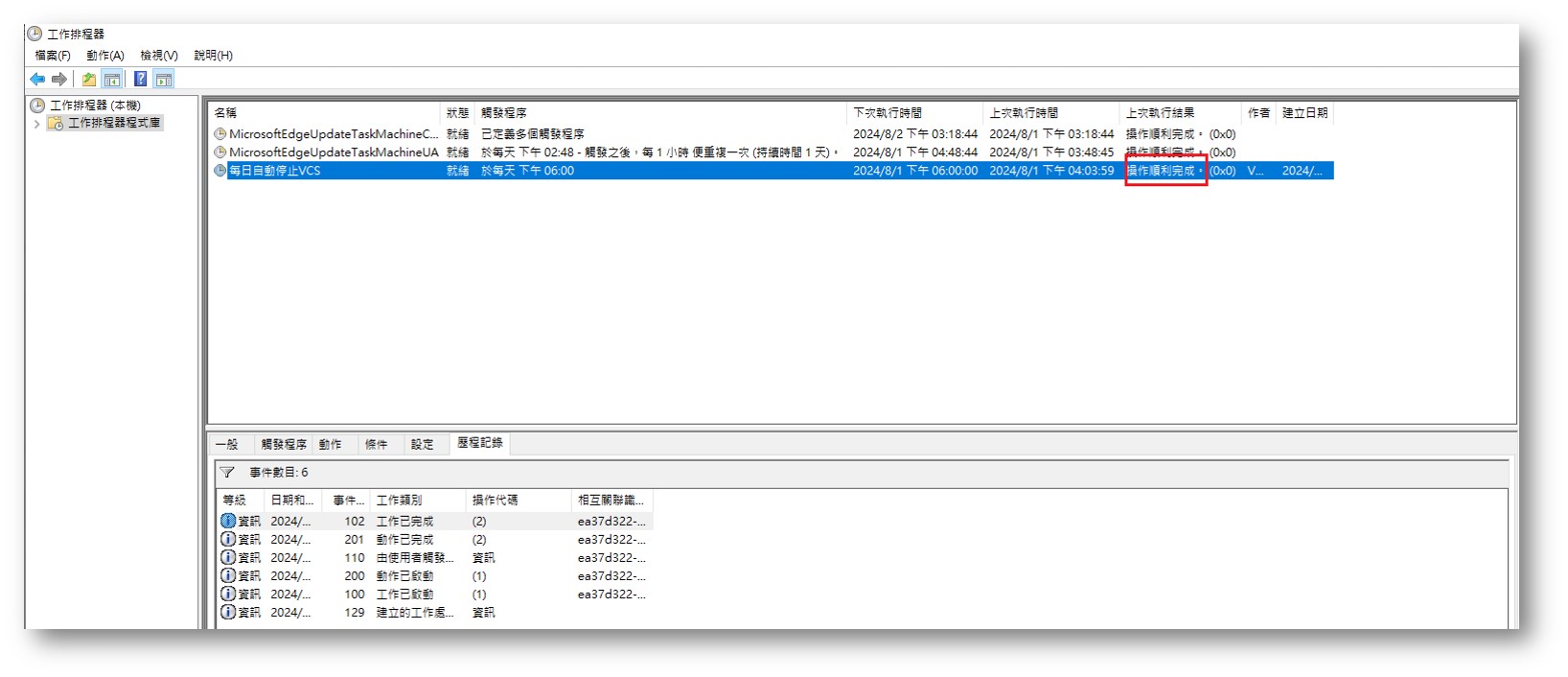
- You can check the platform webpage to confirm that the VCS status has changed to Stopped/Ready, meaning the stop/start was successful.
