Comparison Use TWSC VCS Virtual Computing Service If you only need to use static web pages, you may consider using [the appropriate method/method]. TWSC COS Cloud Item StorageStatic webpage setup reduces maintenance costs.
| Service type | Types of websites | The URL used | cost |
|---|---|---|---|
| Using VCS to set up a website | Supports dynamic web pages | You can use a public IP address to apply for credentials and a domain name. | VCS individual fees, public IP fees |
| Using COS to set up a website | Static web pages are supported only. | Only the URLs provided by the system can be used. | COS storage fees |
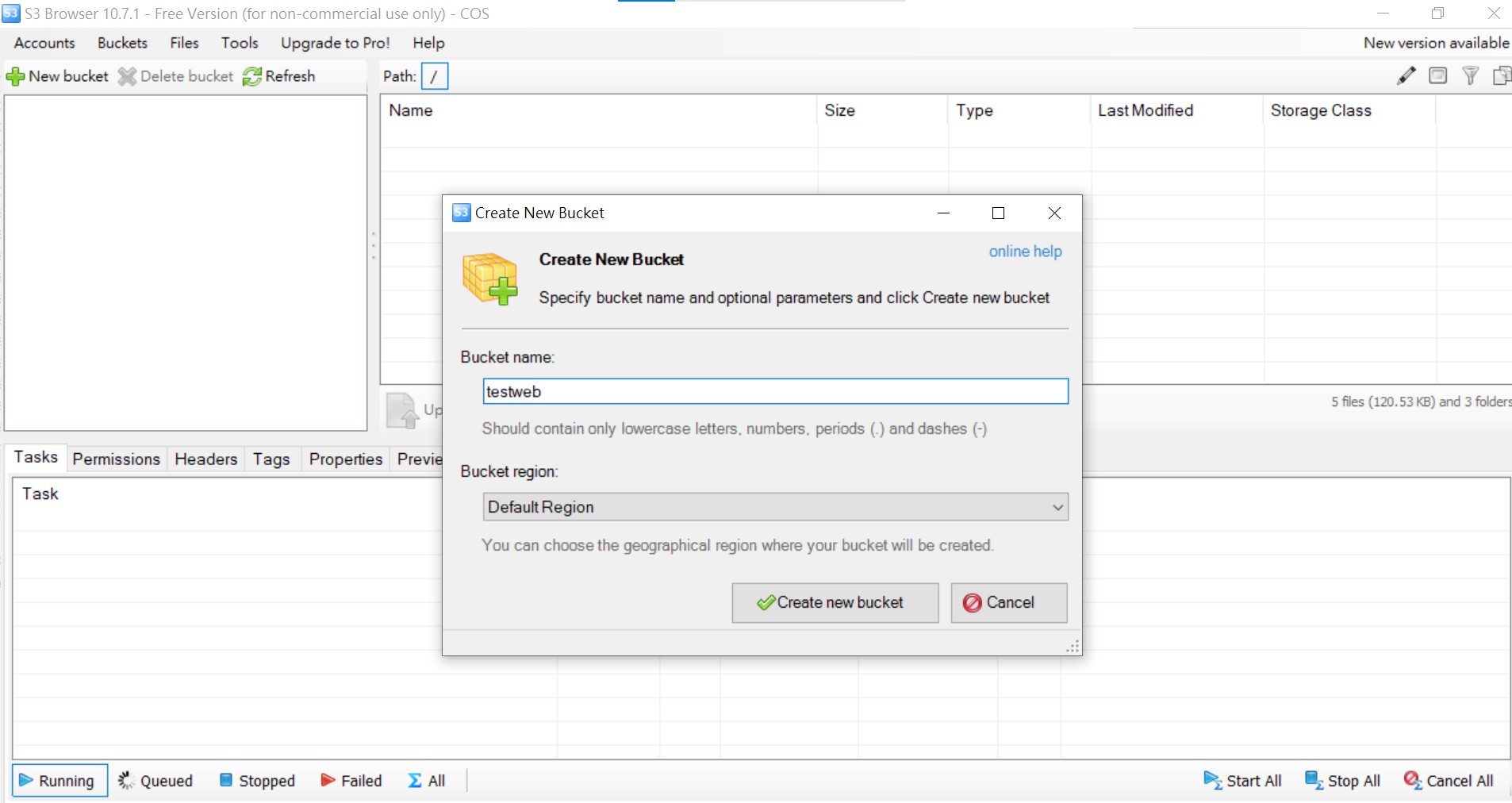
1. Create a COS bucket
Reference HowTo: Connect to storage using S3 BrowserUse S3 Browser to connect to TWCC COS and create a Bucket and folder.
2. Upload webpage file
Upload the webpages you plan to use to the folder inside your COS bucket.
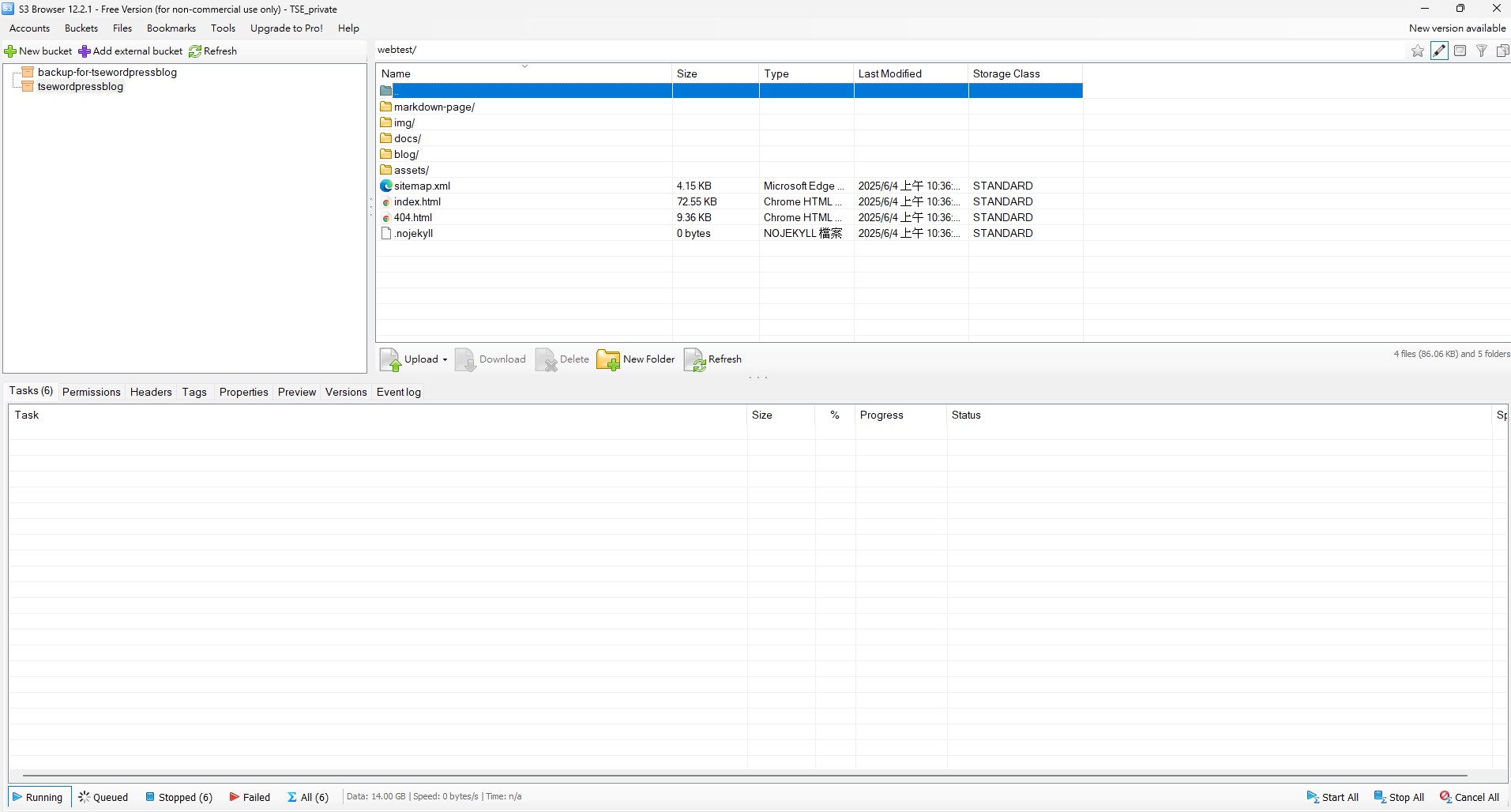
This article is based on Docusaurus Using this webpage as an example, upload the data from the "build" folder to COS.
3. Set file permissions
- Select all files and folders
- Click on the Permissions page
- In the permissions list, check the "Read" box for "All Users" to grant all files read permissions to everyone.
- Check if "Apply for all subfolders and files" is checked to ensure that permissions can be applied to all files in the folder and its subfolders.
- Select "Apply changes" to apply the settings.
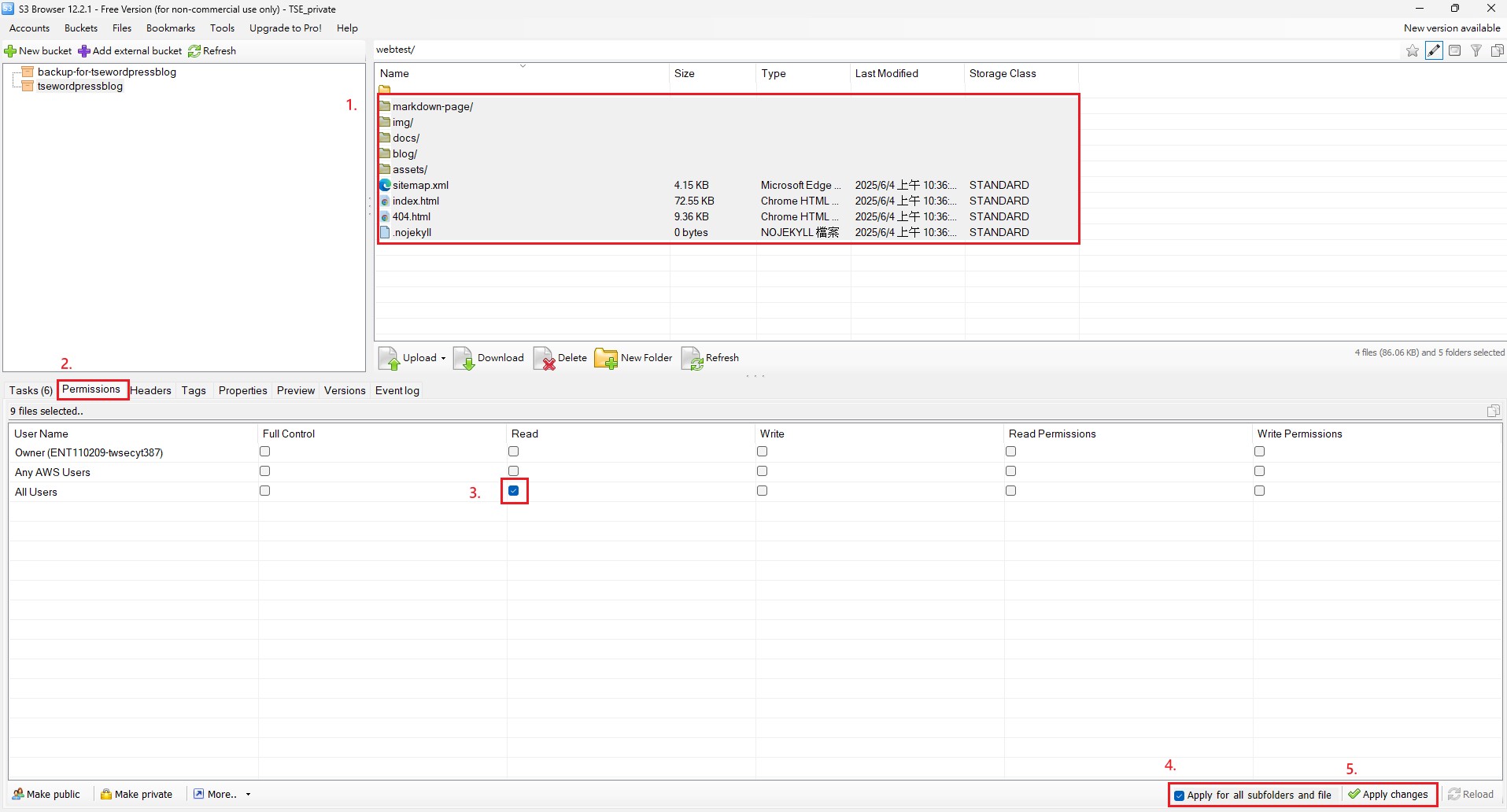
4. Start webpage testing
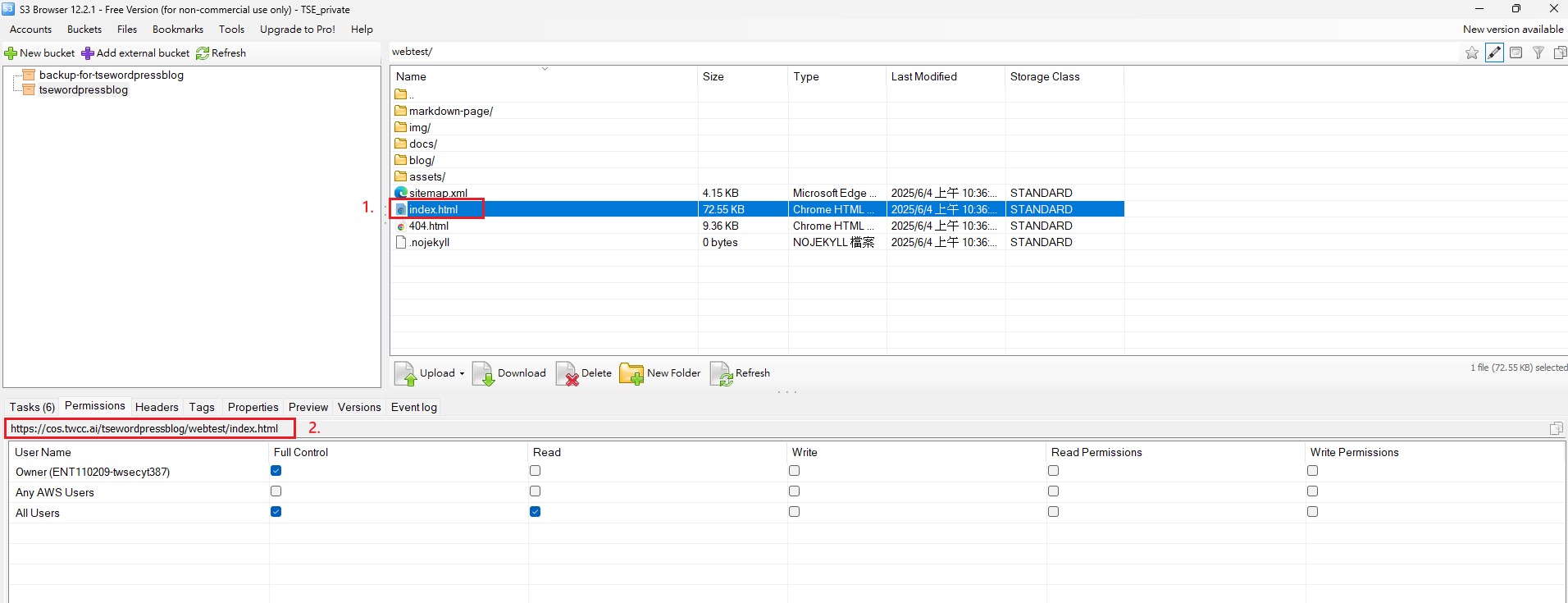
- Select the webpage you want to open
- On the Permissions page, copy the URL provided by the system.
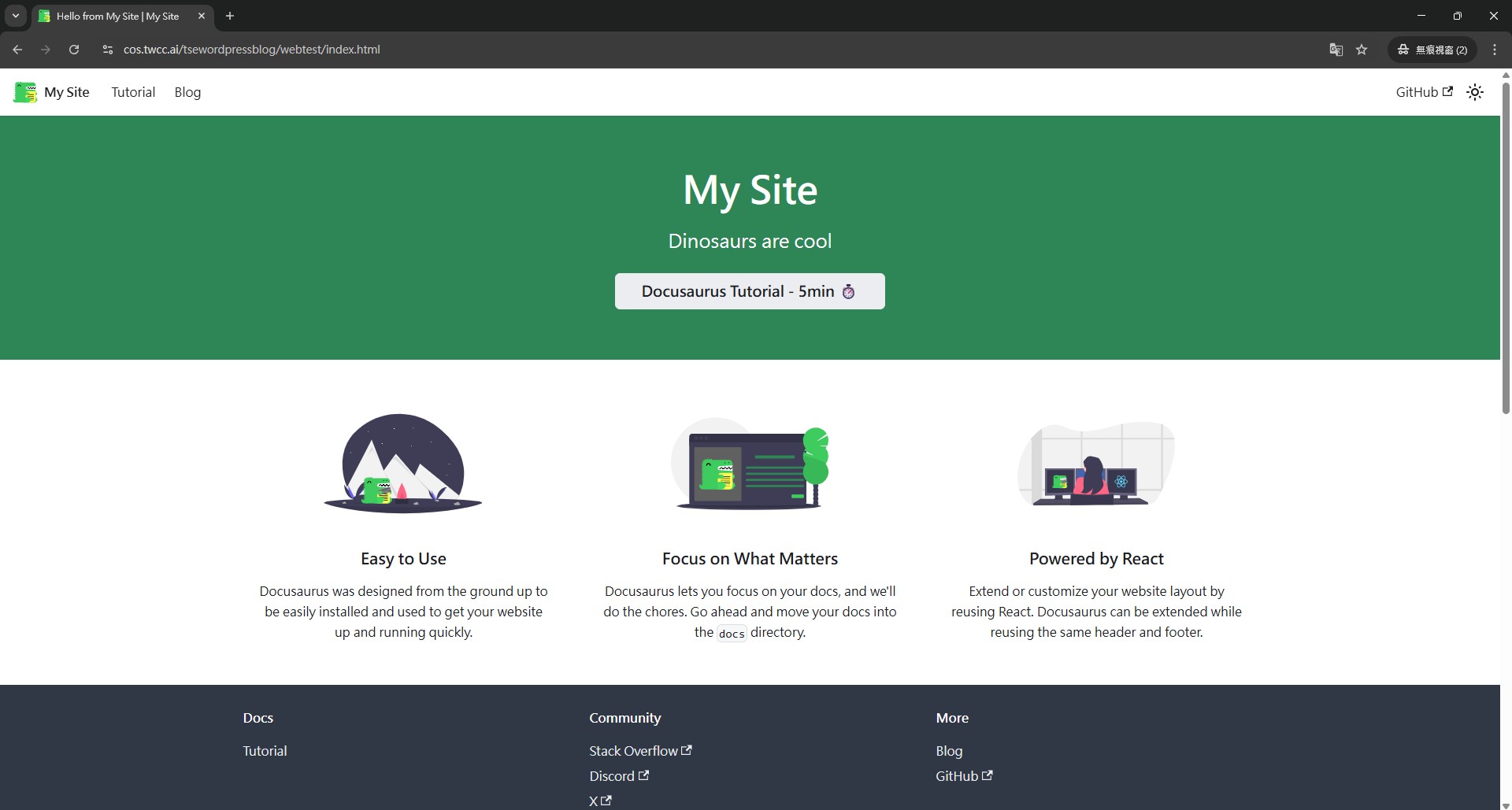
- Check if the webpage is displaying correctly.