Connecting to interactive container via VScode
If you already use VScode to develop your applications, you can connect to your interactive container directly with it. VScode supports multiple platforms and provides many extensions; it’s easy to install and beginner-friendly. The screenshots below show Windows; Linux or macOS steps are similar. For full instructions, see theOfficial documentation.
Step 1. Download and install VScode
Please go to VScode to download and launch the program once finished.

Step 2. Install the SSH extension
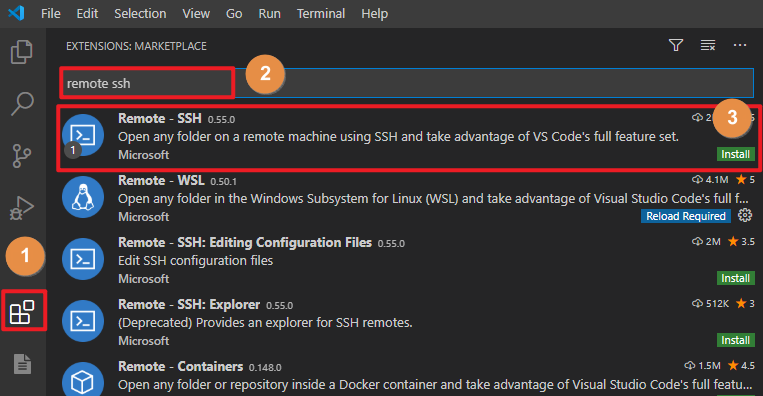
Click "Extensions" > Search remote ssh > Select "Remote-SSH" and click "Install"
Step 3. Create the SSH config file
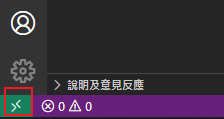
- After installation, click the icon in the lower-left corner to open the Remote commands list.
- Click "Remote-SSH: Open Configuration File"
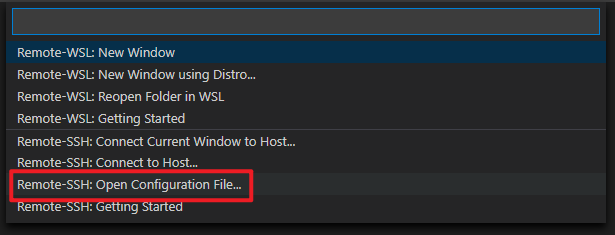
- Click "C:\Users\User.ssh\configto create a connection config file.
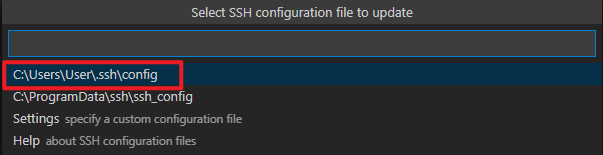
Host (INSTANCE_NAME)           # Enter alias
    HostName (PUBLIC_IP)       # Input Development Container Public IP
    User (IMAGE_TYPE)          # Enter host account
    Port (PUBLIC_IP_port)      # input development container public IP port

Step 4. Connect to the interactive container
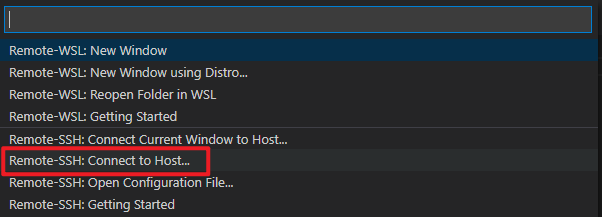
- Open the VScode icon in the lower-left corner again > Select "Remote-SSH: Connect to Host…"
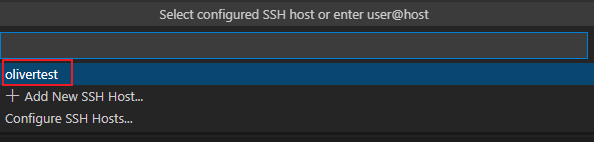
- Your configured hosts will be listed; click one to start the connection.
- Then select "Linux"

- Click "Continue" to proceed

- enter "Host password"

- Once connected, the lower-left corner shows
SSH: (Host Name)

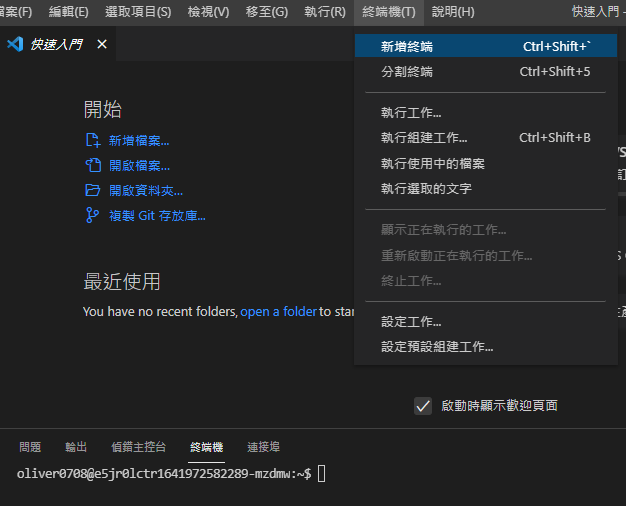
- Then open “Terminal> "New terminal". Now you can start using the interactive container!