
Configure Security Group
-
For security group-related documentation, please refer to [link/reference].TWCC Security Group Documentation.
-
From the Services list, click “Security Group” to enter the “Security Group Management (VCS list)” page, then select your VCS.
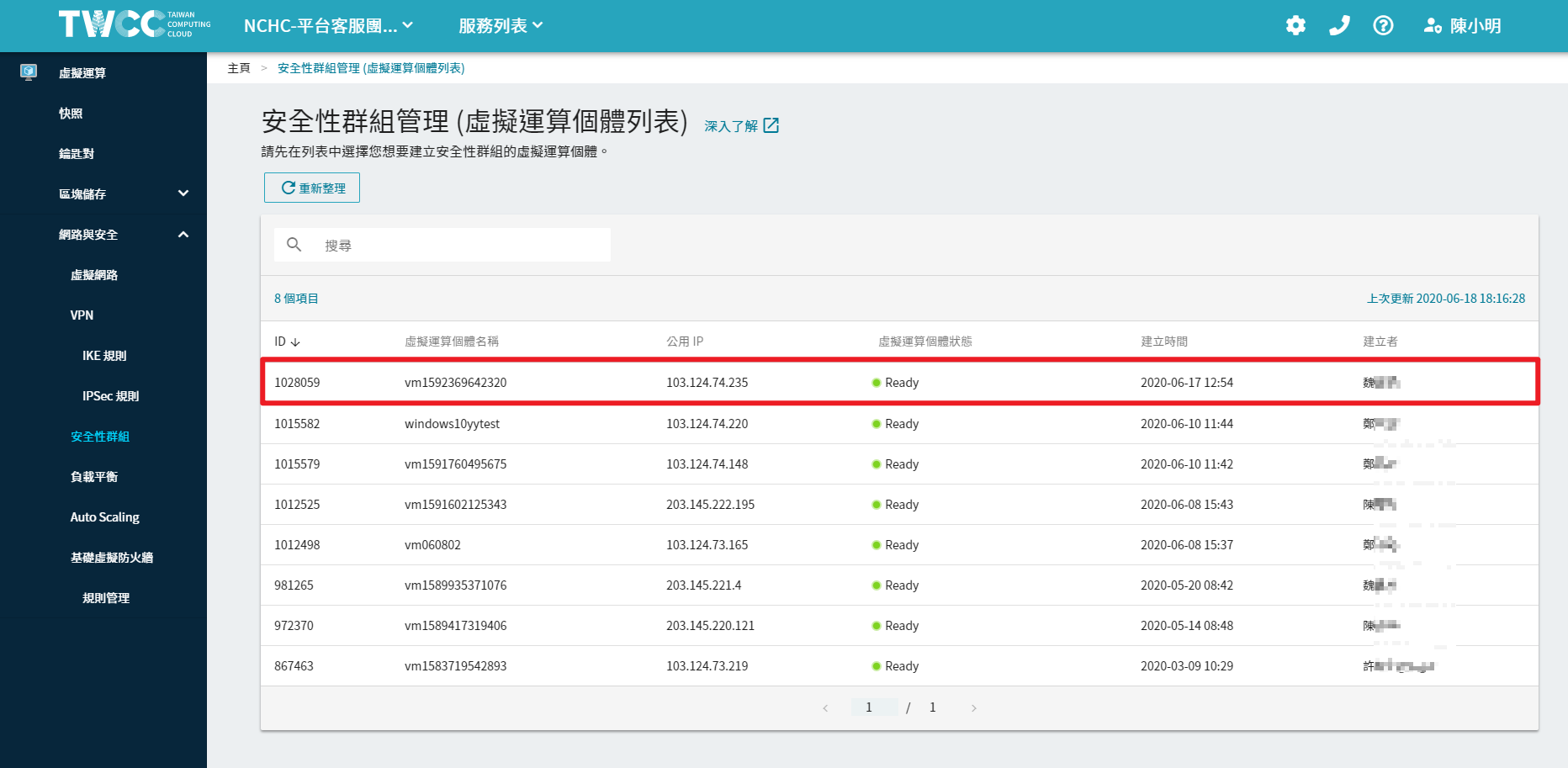
-
On the Network Security Rules page, you will see the current rules. Click “Create”.
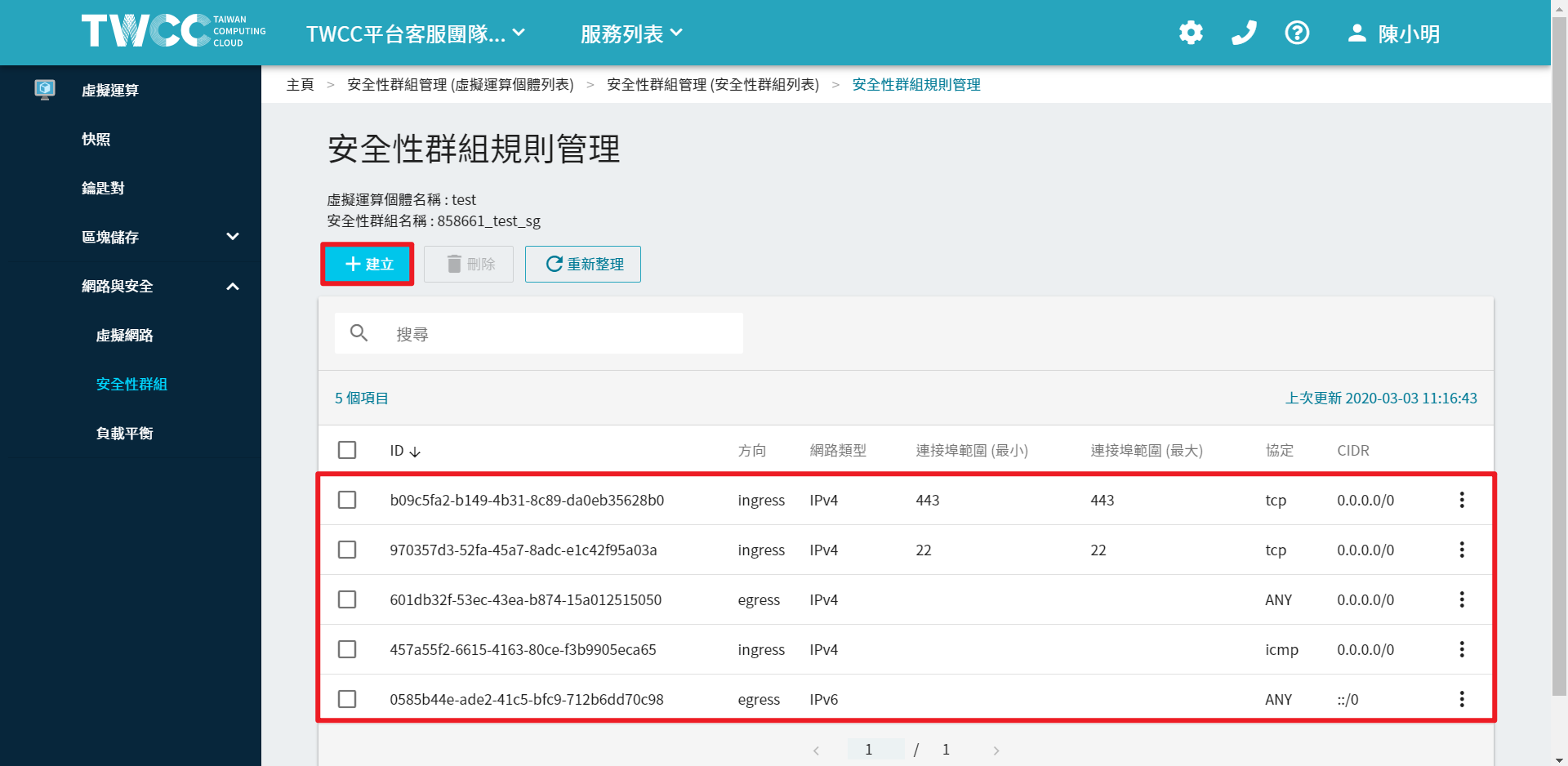
-
Configure as shown below
- Direction: ingress
- Connection port range: Enter 3389 for both the minimum and maximum.
- Protocol: TCP
- CIDR: 0.0.0.0/0
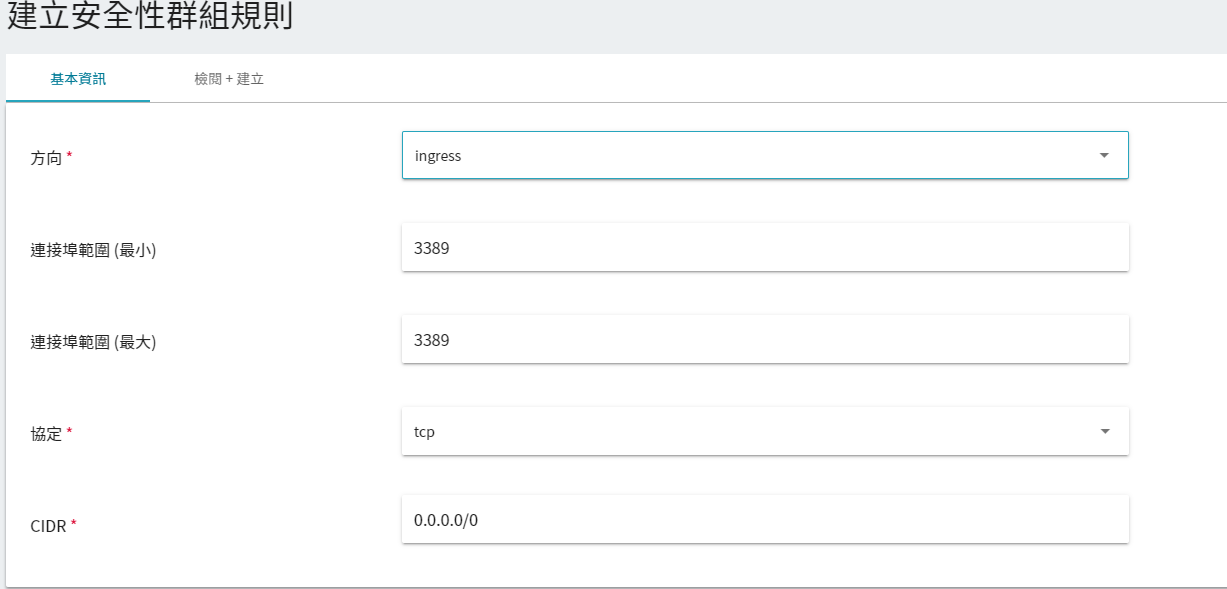
-
Click “Next”, review the settings, then click “Create”. After creation, you will see that this port is open.
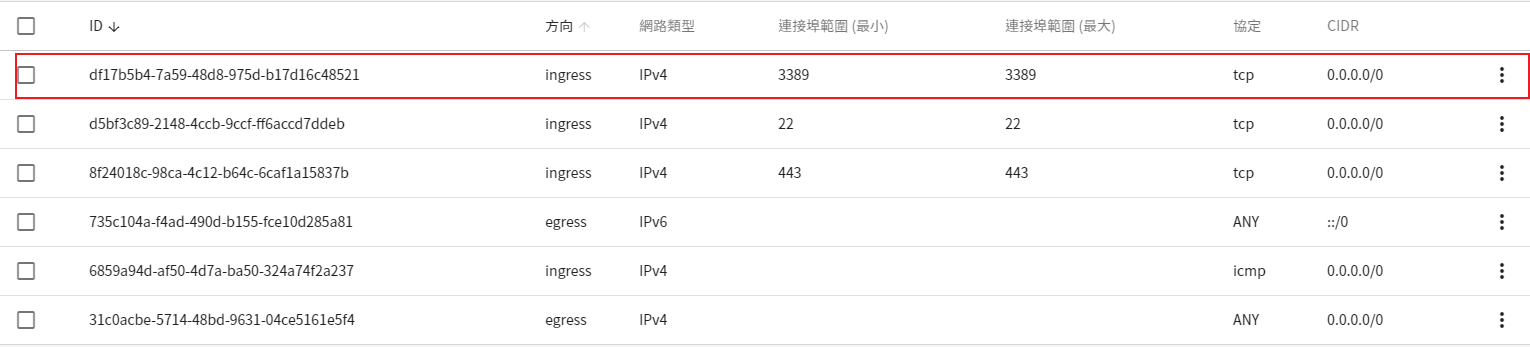
Install Remote Desktop Environment
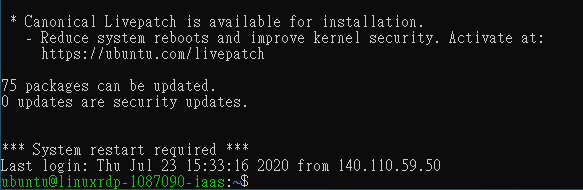
- Connecting to VCS
- Install desktop environment
sudo apt update
sudo apt-get install -y xfce4
- Install remote desktop server
sudo apt-get install -y xrdp xorgxrdp - Enable the service
sudo systemctl enable xrdp
- Set the desktop session
echo xfce4-session >~/.xsession - Restart the xrdp service
sudo service xrdp restart - Check RDP status
sudo netstat -plnt | grep rdp
Set RDP Login Credentials
- Add a user (oliver is the username), then enter your password and basic information.
sudo adduser oliver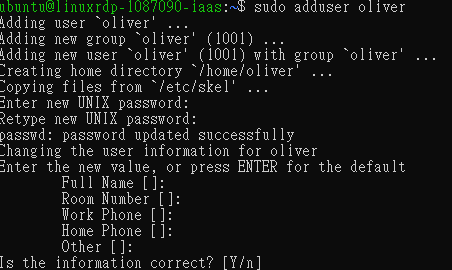
Log In via Windows Remote Desktop
Find the VCS IP address

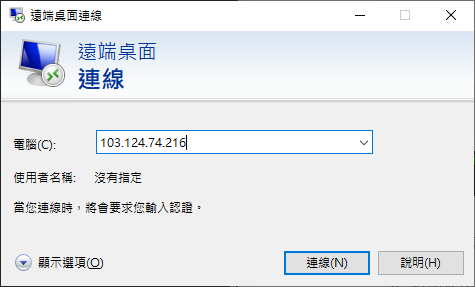
On Windows, open Remote Desktop Connection and enter the IP
After connecting, enter the username and password you just created
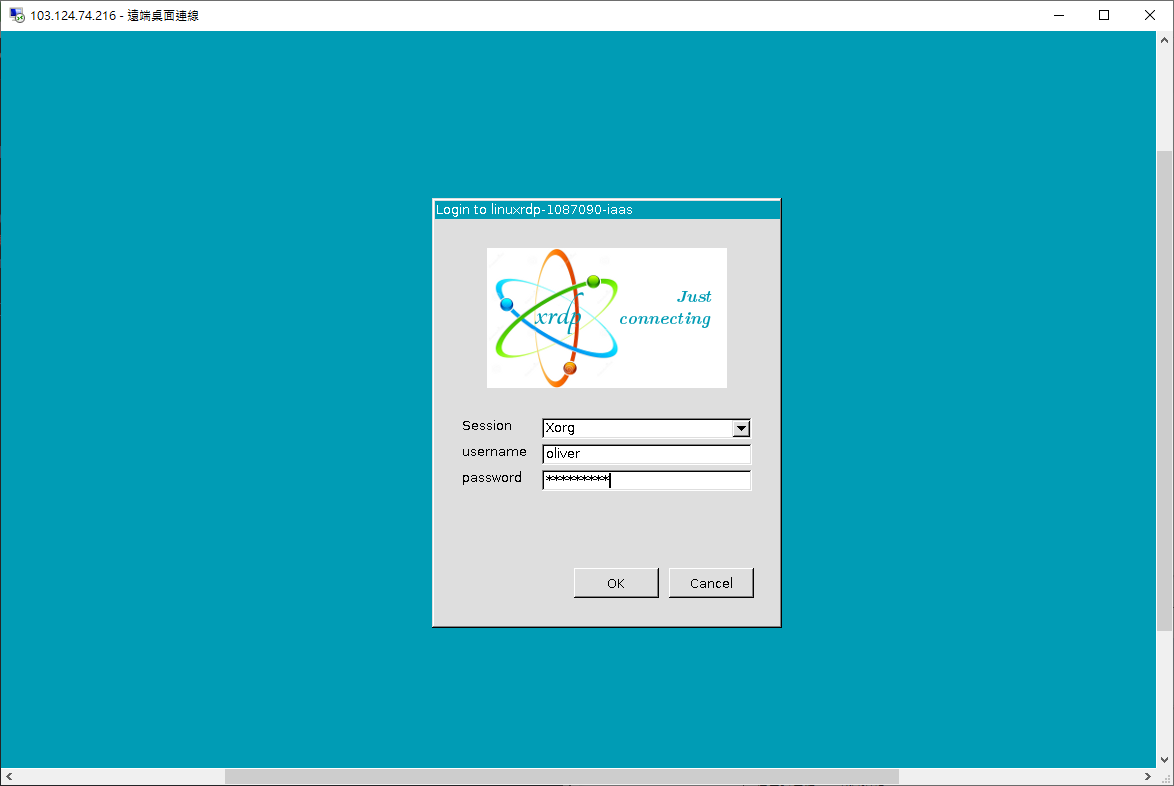
Successful login screen