

Virtual Disk Service (VDS) is used together with Virtual Compute Service (VCS) to provide additional storage space for VCS instances.
Usage Scenarios
In the past, we have received user feedback requesting the ability to transfer data from virtual disks within one project to another project, which may be necessary when a project expires and data needs to be migrated to a new project, or due to specific usage requirements.
Currently, TWCC does not provide a built-in function for migrating virtual disks. Therefore, we recommend using SCP to transfer data. Below, we introduce the operation method and important considerations.
Application scenario design
Transfer the file test.txt (located in the exptestscp1 folder and already mounted on a virtual disk) from the source host (vmscp1) to the target host (vmscp2) under the exptestscp2 folder (also mounted on a virtual disk).
Experiment Specifications
Both use VCS provided by TWCC with the following specifications:
Source Host
- Instance Name: vmscp1
- Project ID: ENT110209
- Specification: 2 CPU, 16G Memory, 100G System Disk, 10G Data Disk (HDD)
- OS: (public) Ubuntu 20.04
Target Host
- Instance Name: vmscp1
- Project ID: ENT110209
- Specification: 2 CPU, 16G Memory, 100G System Disk, 10G Data Disk (HDD)
- OS: (public) Ubuntu 20.04
Procedure
Create and Backup Keys
Backup Keys
To ensure both VCS hosts can transfer files via SCP, we first create an additional key pair. Start on the source host to create and back up the keys.
cd ~/.ssh
cp authorized_keys backup.txt
vi backup.txt
cd


Create Keys
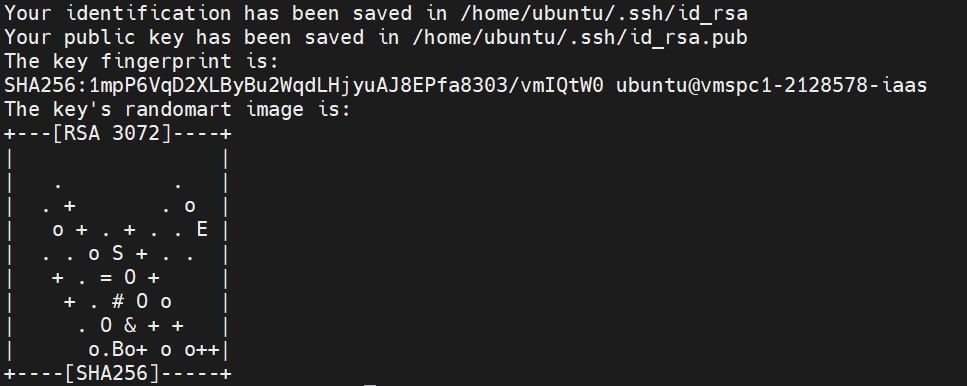
On the source host (vmscp1), use ssh-keygen to create the SCP transfer key.
ssh-keygen


cd ~/.ssh
cp id_rsa.pub authorized_keys
cat authorized_keys


On the target host (vmscp2), back up the contents of authorized_keys:
cd ~/.ssh
cp authorized_keys backup.txt
vi backup.txt


Replace authorized_keys on the target host (vmscp2) with the contents copied from the source host (vmscp1).

Synchronize authorized_keys between source and target hosts to allow direct SCP transfer.
After pasting, press Esc, then type :wq and hit Enter to save.
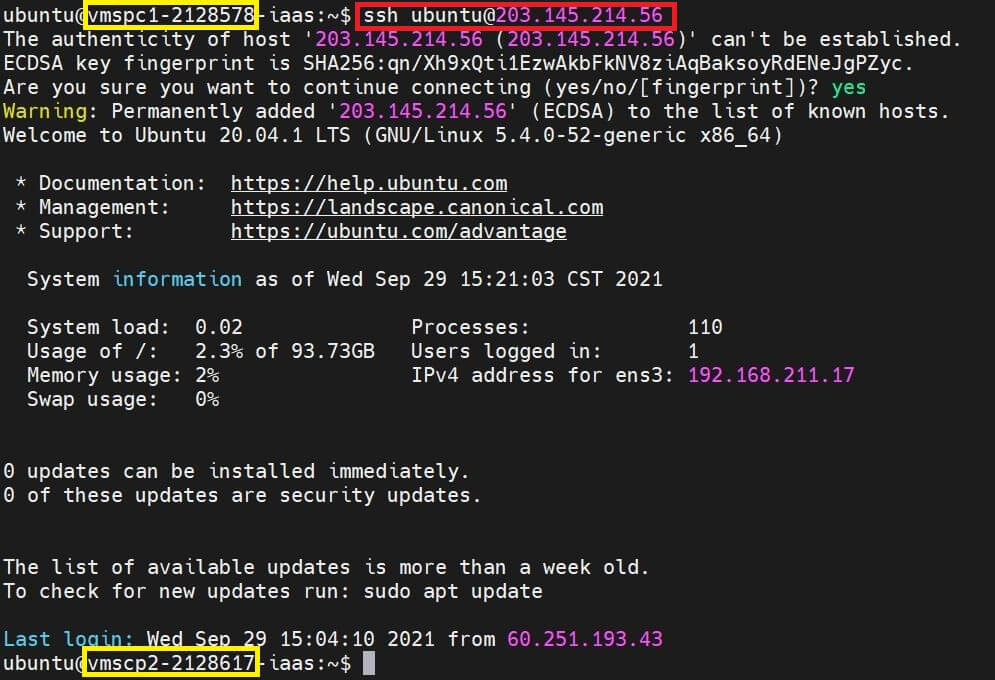
Use SSH to test connectivity:
ssh @
File transfer
Use the SCP command to transfer files:
scp // @:/path/

To verify, log into the target host and check the target folder for the file:

Restore Keys
On both the source host (vmscp1) and target host (vmscp2), restore the original keys:
cd ~/.ssh
cp backup.txt authorized_keys


Notes
1. When backing up VDS using SCP, always keep the original key.
2. After modifying the key, ensure the VCS does not disconnect; otherwise, you may lose access to the instance.
Image source: pexels