Cloud Object Service (COS) is an object storage system compatible with Amazon S3 and supports encrypted uploads and downloads. Users can access it through...s3cmd setpolicy Commands or S3 Browser Graphical interfaces and other tools can be used to set access rules for storage, allowing only permitted source IPs to access it, thus enhancing the security of users' storage and files. This article will teach you how to use s3cmd and S3 Browser to restrict the source IPs that can access storage.
Prerequisites
1. Create a COS Bucket
For instructions on how to create one, please refer to Create and Delete Bucekts
2. Connect to COS
For installation instructions for s3cmd and S3 Browser, as well as configuration settings for connecting to COS storage, please refer to the following documents:
- s3cmd Please refer tothis document..
- S3 browser Please refer tothis document.
3. Confirm the COS bucket name and allowed source IPs
- You can view the names of all public/private buckets via (1) the
s3cmd lscommand or (2) the S3 Browser. - Confirm the source IP addresses that you want to allow to access the storage.
Procedure
Step 1. Edit the JSON file
The following JSON policy template Allows only the source IP (Allow) 203.145.219.99/32 to your-bucket-name to perform read and download actions (s3:GetObject) bucket:
{
    ""Version"": "2012-10-17",
    ""Statement"": [
        {
            ""Effect"": ""Allow"",
            ""Principal"": "*",
            ""Action"": ""s3:GetObject"",
            ""Resource"": ""arn:aws:s3:::your-bucket-name/*"",
            ""Condition"": {
                ""IpAddress"": {
                    ""aws:SourceIp": "203.145.219.99/32"
                }
            }
        }
    ]
}
Please replace the following items in the policy file with your own values:
your-bucket-name: Replace with your actual bucket name.203.145.219.99/32: Replace with the source IP address range you want to allow.- For more details on JSON configuration files, please refer tothis document.
Step 2. Set the JSON policy for the bucket
-
s3cmd
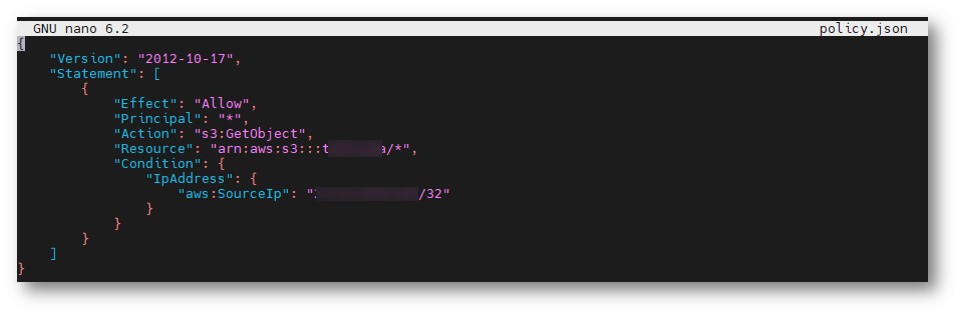
- Create a policy file named "policy" (you can specify your own filename), and open the editor:
nano policy.json - Copy and paste the JSON configuration content from Step 3.
- Create a policy file named "policy" (you can specify your own filename), and open the editor:
-
- Press
ctrl + OthenEnterto save the file and confirm the filename. - Press
ctrl + Xto exit the editor. - Execute the following command to set the policy.
Repleace your-bucket-namewith your actual bucket name to complete the setup.s3cmd setpolicy policy.json s3://your-bucket-name
- Press
-
S3 Browser
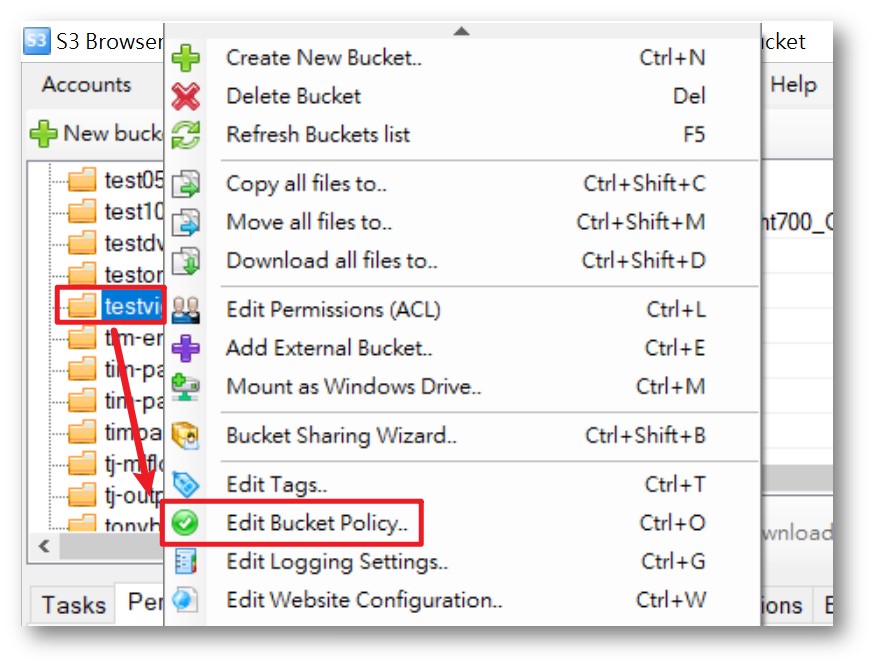
- Right-click on the bucket > Select Edit Bucket Policy
-
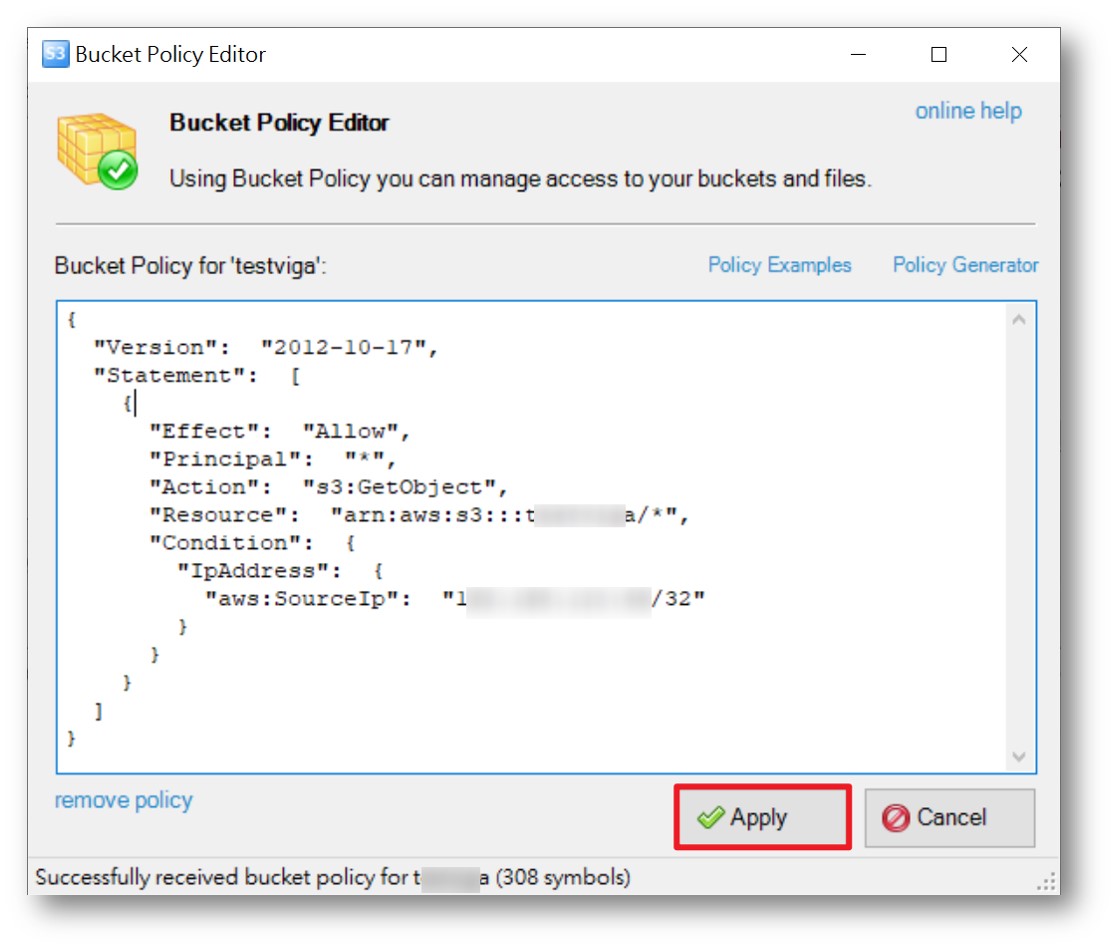
- Copy and paste the Step 1 JSON configuration file content > click Apply to complete the setip.
Step 3. Test: Unauthorized IPs cannot view files.
- COS file URL:https://your-bucket-name.cos.twcc.ai/your-file-name.extention
Repleace your-bucket-nameChange to bucket nameyour-file-name.extentionReplace with [filename.extension]
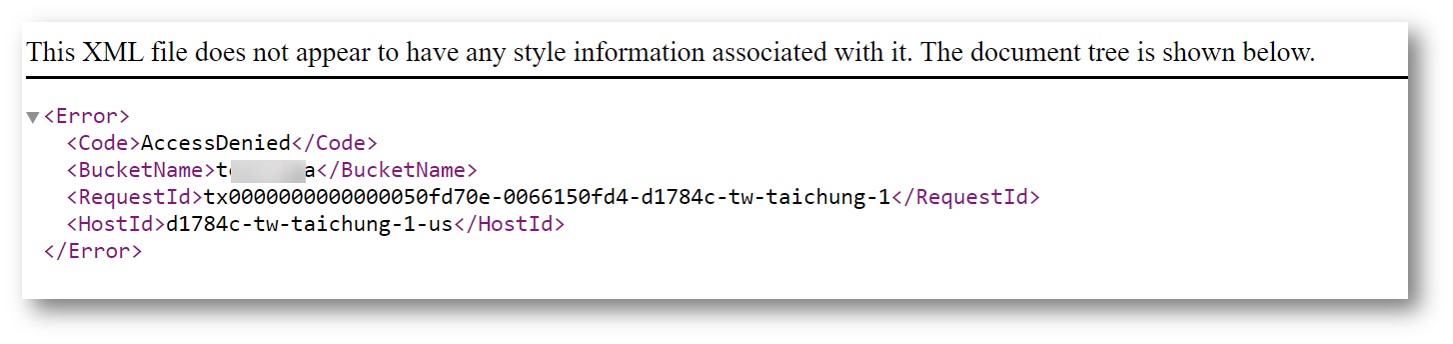
- If the URL that connects to the file is from an IP range other than that set in Step 2, the file content cannot be viewed; only an "Access Denied" message will be displayed. Confirm that the rule settings were successful!