

TWCC Hyper File System (HFS) serves as the storage space for container services and HPC high-performance computing tasks. Its main feature is a scalable and high-performance parallel file system. This article will explore how to use the Hyper File System as storage for VCS instances.
Introduction
This article introduces how to mount the Hyper File System onto a VCS instance as storage. If you require higher performance read/write storage or want to reduce the process of transferring container data to a VCS instance, you may try the following method to mount the Hyper File System onto the VCS instance to meet your needs.
Prerequisites
1. TWCC c.super (1 GPU, 4 CPU, 90G memory) CCS container
2. TWCC v.super (2 CPU, 16G memory, 100G HDD [Ubuntu 20.04]) VCS instance
Procedure
1. Create SSH key and copy it into the container
1. Log in to the Linux host where HFS will be mounted
2. Inputssh-keygen -t rsa -n 4096Press ENTER three times to create a key.
3. :Host account
CCS_IP: Public IP for container development
PORT: External port of container SSH
4. Inputssh-copy-id @ -pandthe host password. After the SSH key is copied into the container’s HFS, the container can be deleted.
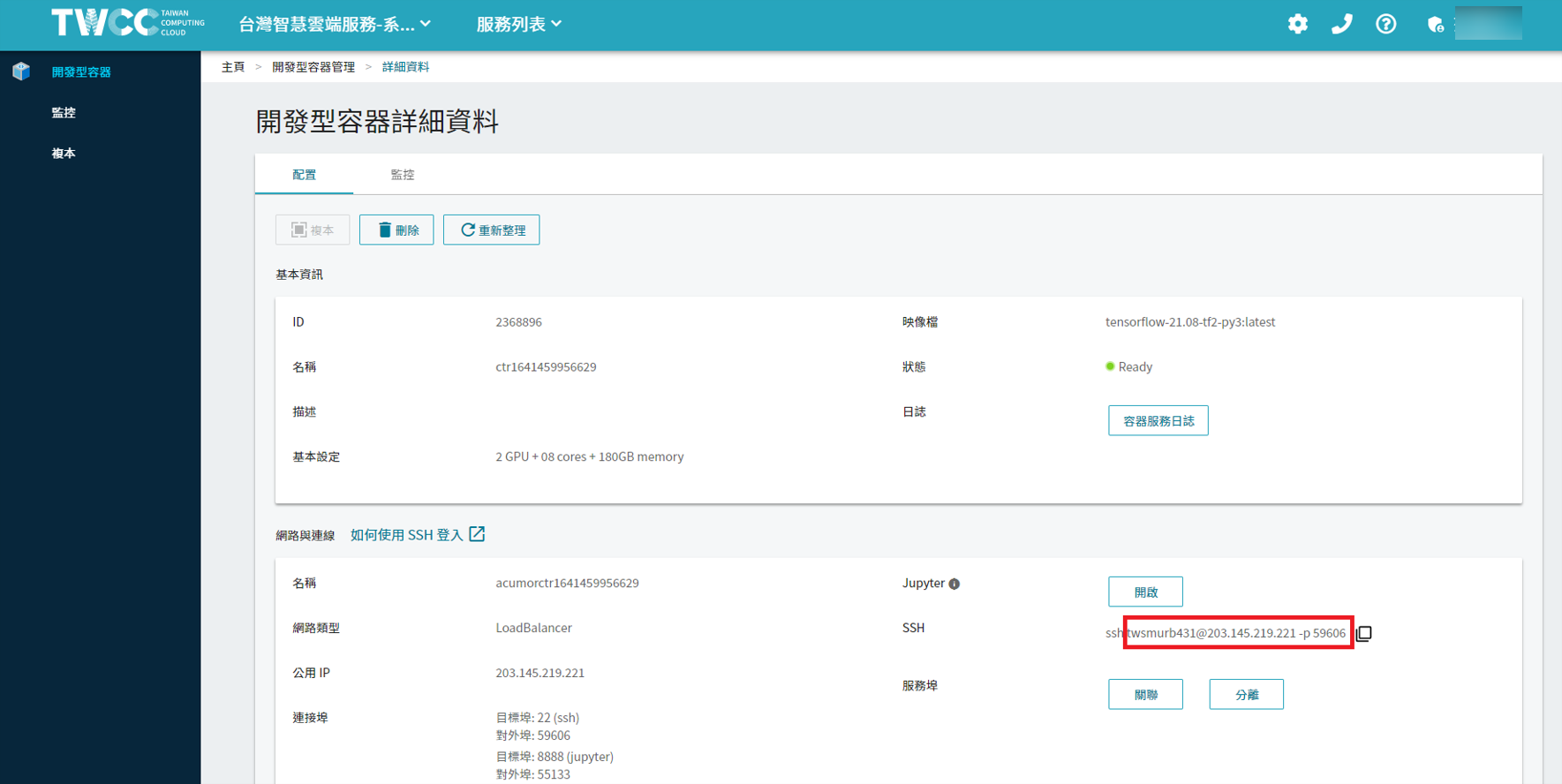

USERNAME: Host account
CCS_IP: Public IP for container development
PORT: External port of container SSH
2. Install SSHFS
- Log in to the VCS host where you want to mount HFS.
- Enter the following commands
sudo apt-get update -y
sudo apt-get install sshfs
3. Mount HFS
- Log in to the VCS host where you want to mount HFS.
- Enter the following commands
mkdir remote_disk

sshfs @xdata1.twcc.ai:/home/ remote_disk
<USERNAME>Host account
remote_disk: The folder to be mounted to HFS; the name can be anything.
Image source: pexels