

This tutorial explains how to install Open WebUI on TWCC VCS and connect it to the ModelSpace public pattern API of AFS (AI Foundry Service). This allows users to test the responses of multiple language models through a browser interface, making it suitable for developers and researchers who need to quickly experience AFS models.
Step 1. Set up a VCS Linux host
First, please set up a Linux host. The following example demonstrates how to set up a Linux host. TWS VCS Ubuntu 24.04 will be used as the operational example in this tutorial.
After the test is completed, it is recommended to stop or delete VCS to avoid continuous billing. Please refer to [link/reference needed] for the relationship between status and billing.Individual life cycle.
Step 2. Install Docker on VCS
Please follow Docker Official Tutorial Therefore, I installed the Docker environment on Ubuntu.
Step 3. Install Open WebUI (Docker version)
Execute the following command to start the Open WebUI:
sudo docker run -d -p 3000:8080 -e OPENAI_API_KEY=your_secret_key -v open-webui:/app/backend/data --name open-webui --restart always ghcr.io/open-webui/open-webui:main
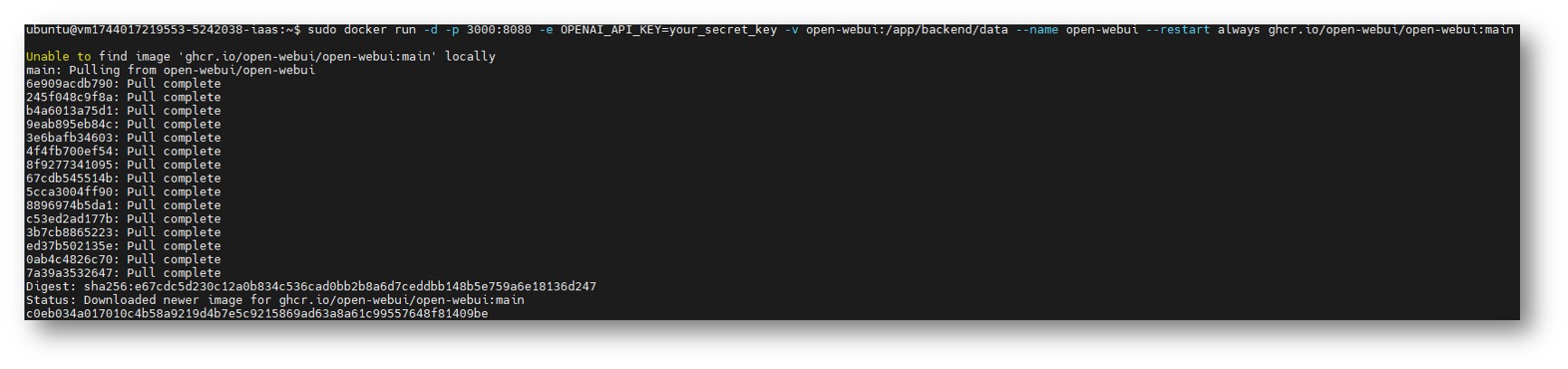
Step 4. Configure VCS security group
Please VCS security group settings pageAdd a new rule to open TCP port 3000:
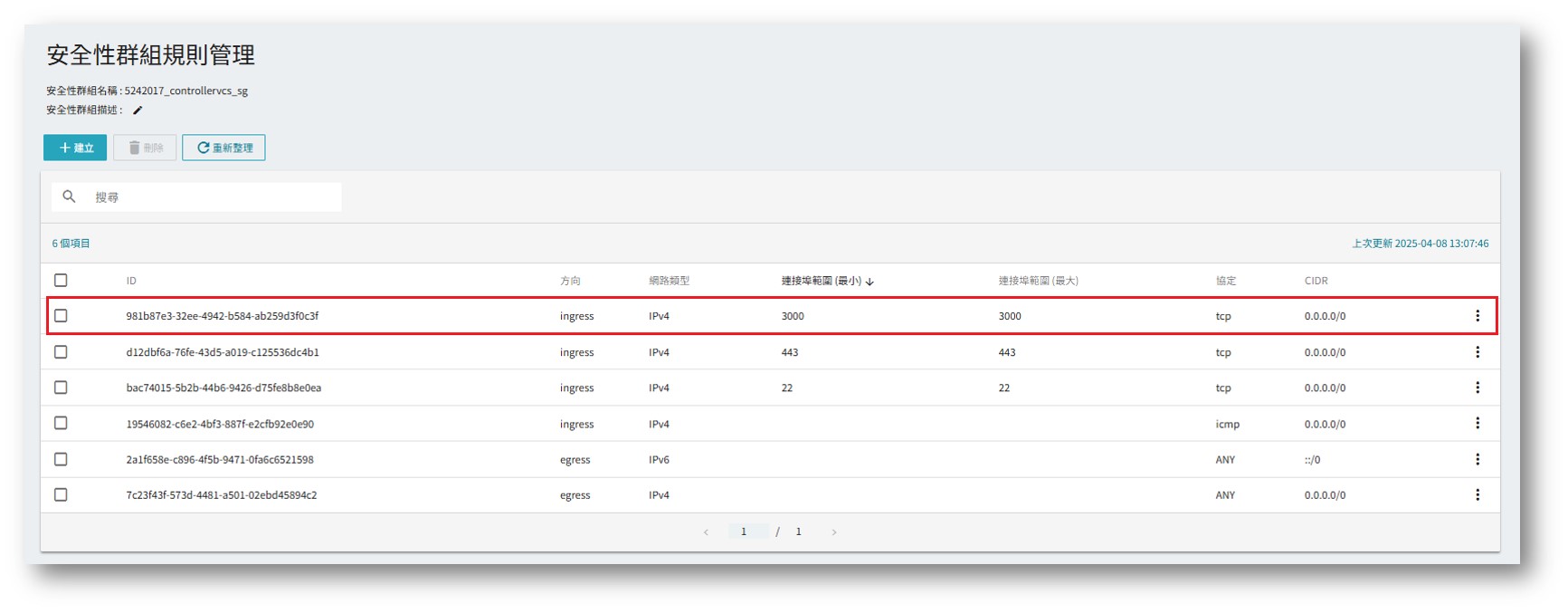
Step 5. Connect to Open WebUI
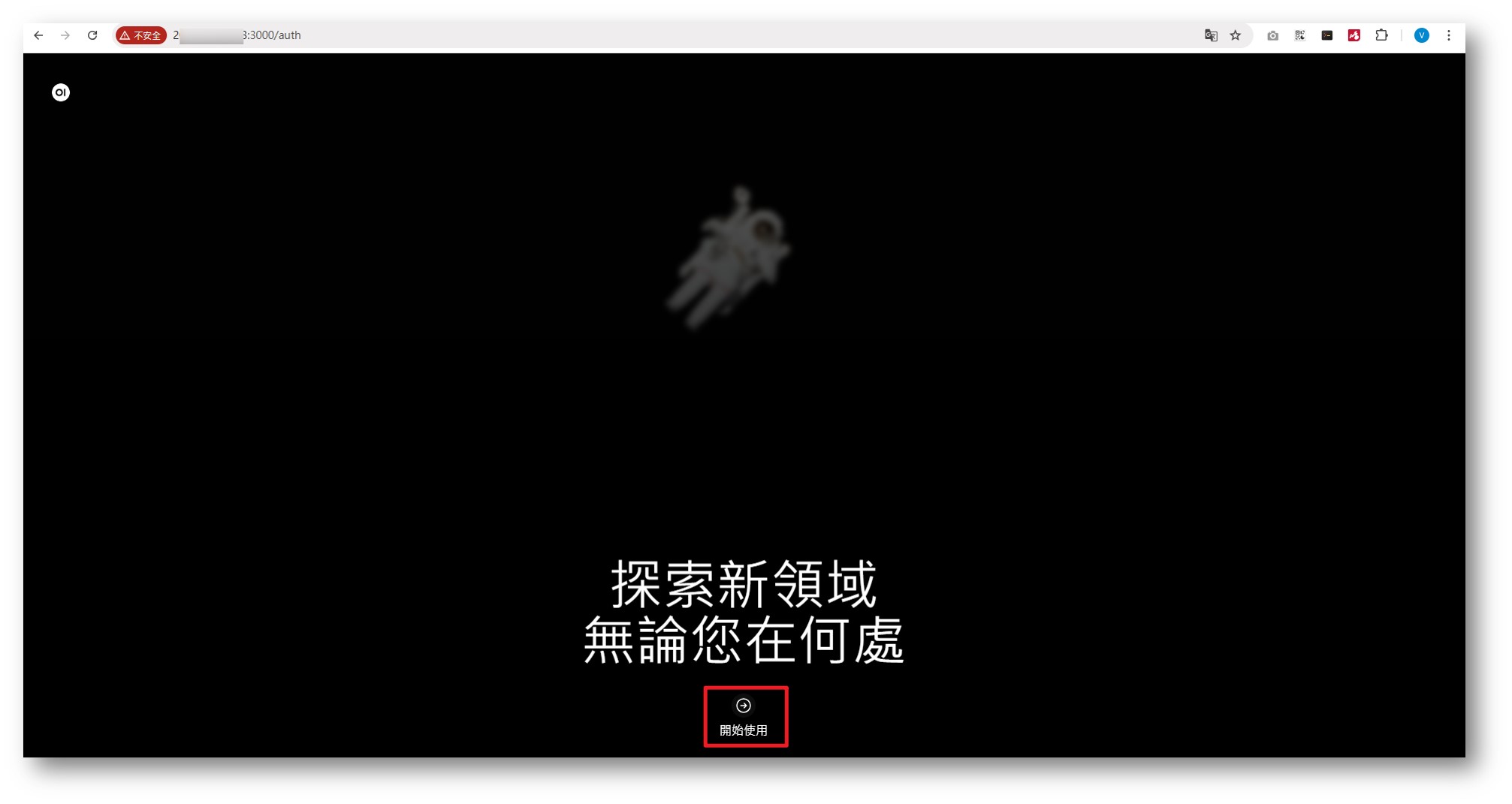
- Open your browser and enter:
http://VCS_Public_IP:3000 - Click "Get Started" below.
Step 6. Create an administrator account
- Upon first login, the system will ask you to create an administrator account. Please fill in the basic information and complete the registration.
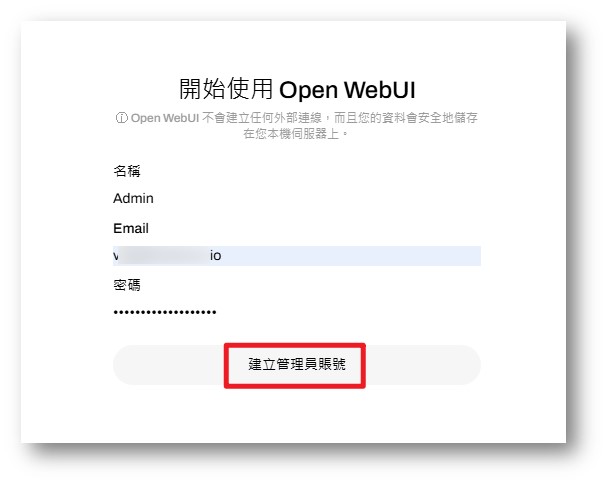
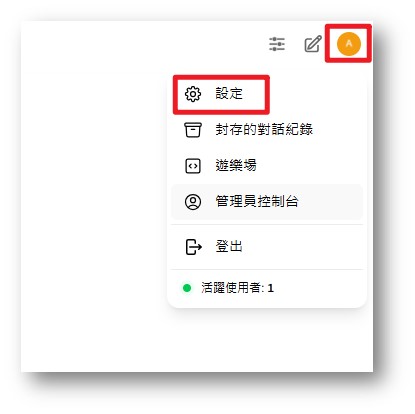
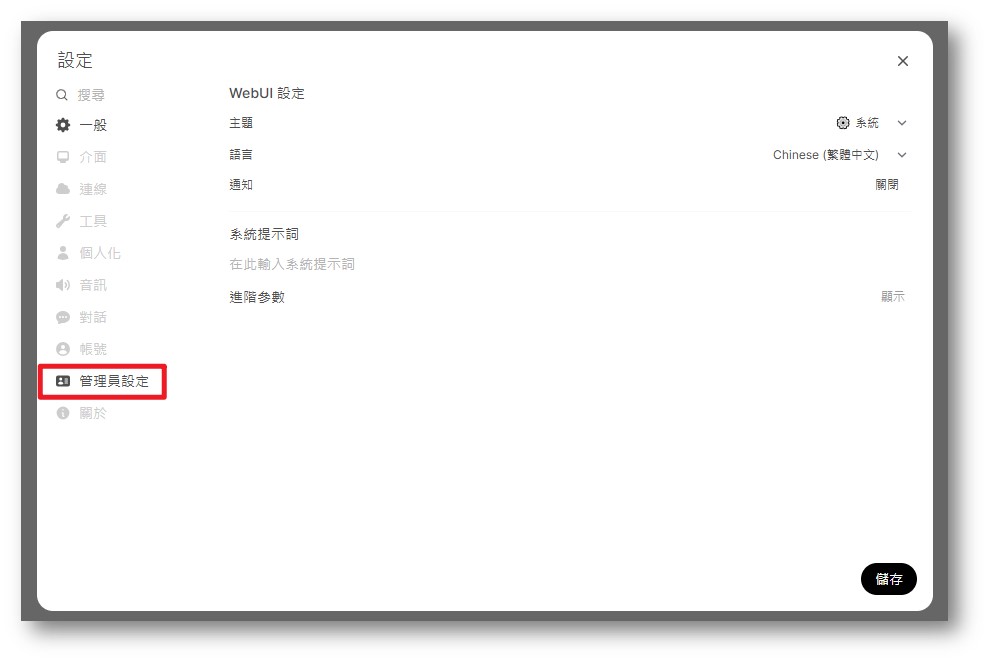
To add other user or administrator accounts, click the user name in the upper right corner > Settings > Administrator Settings > User > + Create

Step 7. Introduce AFS (AFS ModelSpace API)
- Click on your username in the upper right corner > Settings > Connection > Add
- Fill in the following information:
- URL:https://api-ams.twcc.ai/api/models
- API Key: Please fill in AFS Public Mode API Key
- Model ID:AFS Available Model List
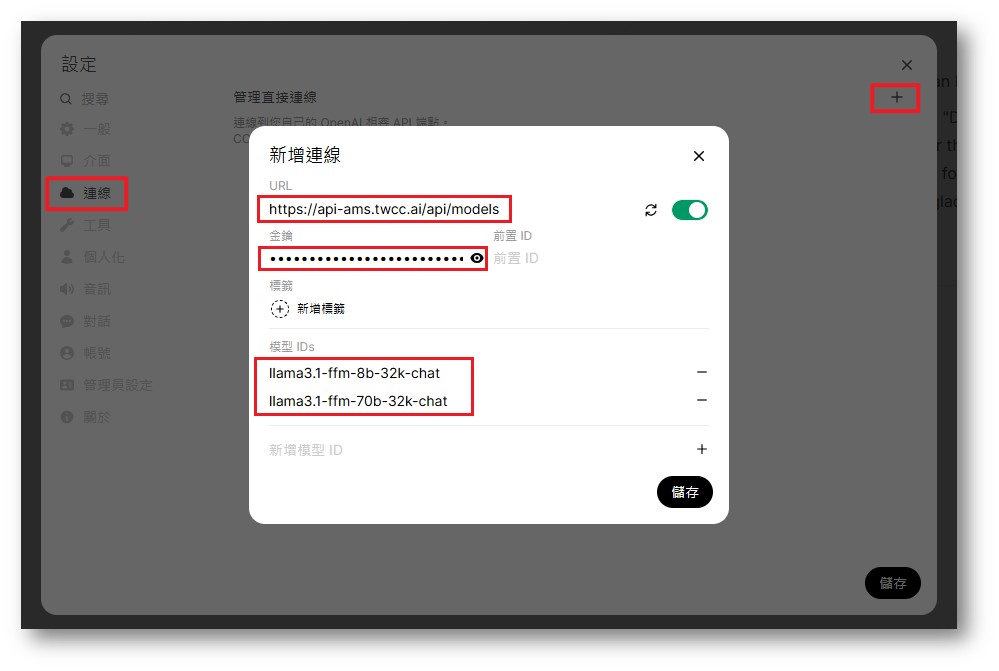
After filling in the form, please click "Save".
Step 8. Test the dialogue function
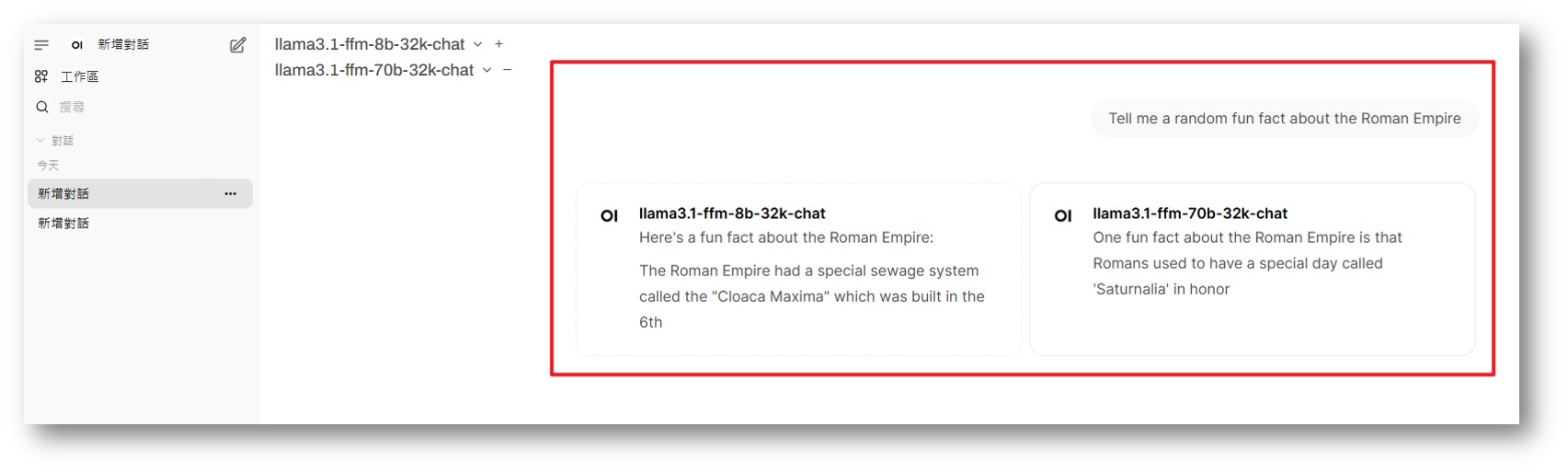
- Add a dialogue > Select one or more models to compare dialogues
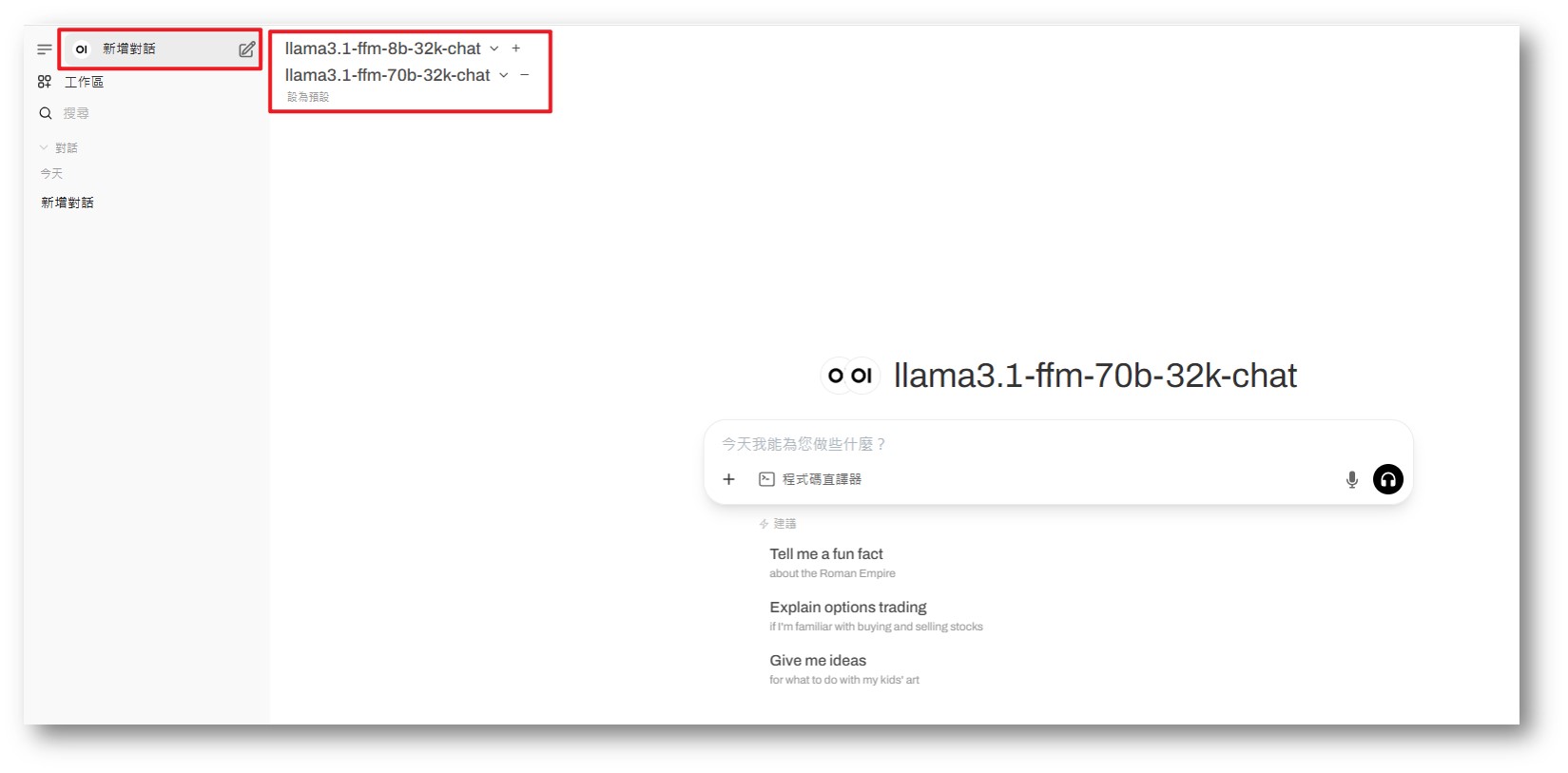
- After entering "prompt", you can view the differences in responses among the various models.
AFS ModelSpace Public Mode Billing Information