

This guide explains how to connect to a VM using FileZilla with a private key. First, convert the VM’s key to PPK format, then log in with the VM’s public IP, username, and the converted key file. This method provides a secure, efficient way to transfer files between your local system and the VM.
STEP 1. Convert the VM’s private key to PPK
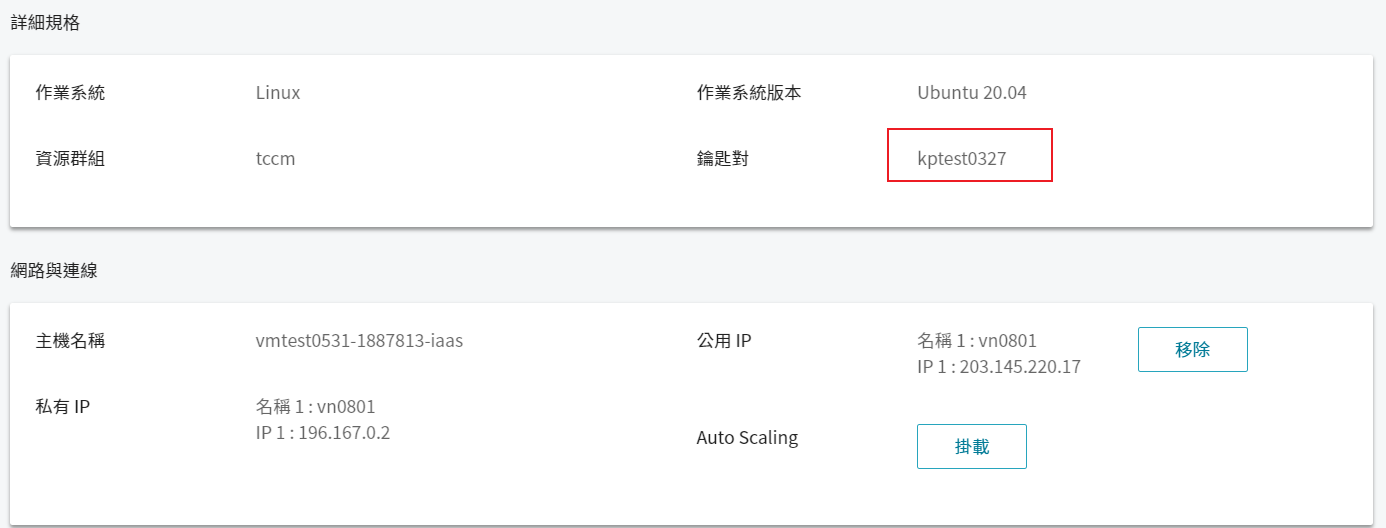
- Confirm which key was used to create the VM.
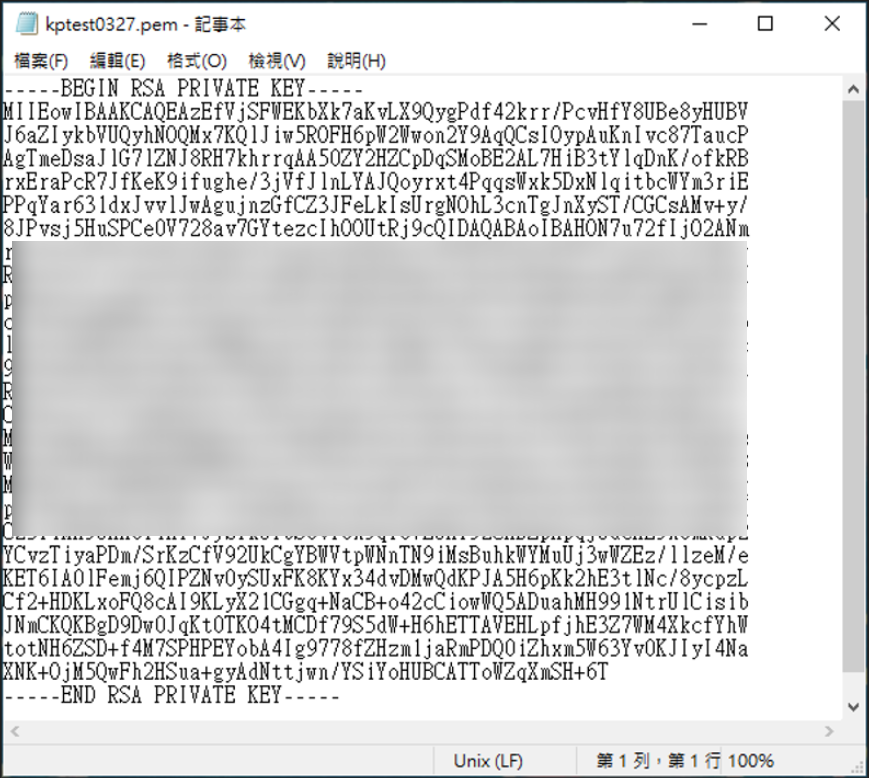
- Open the private key locally with Notepad
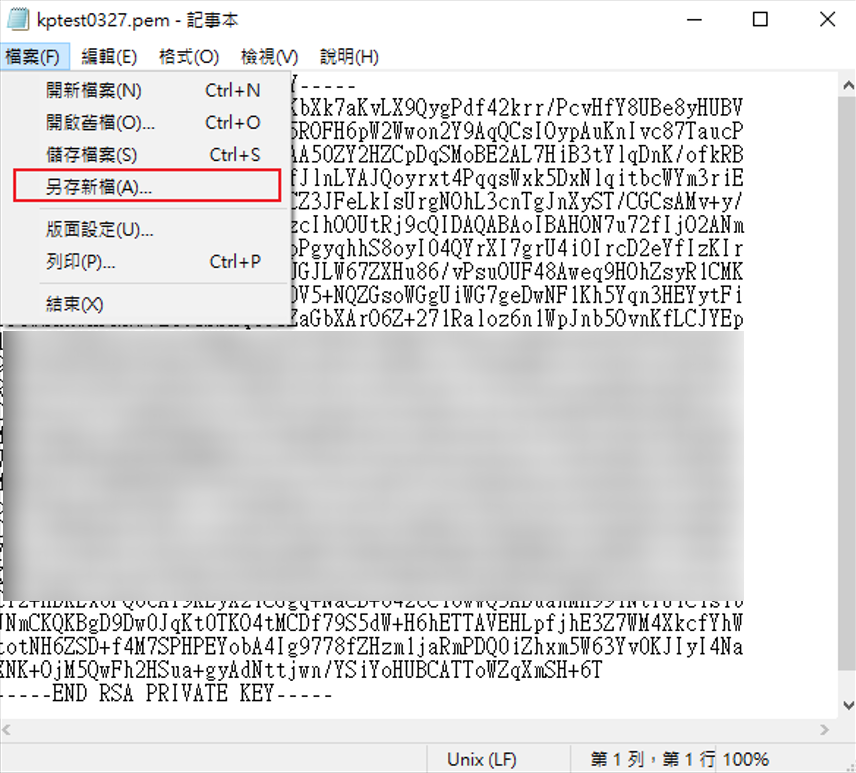
- Save as PPK file

STEP 2. Log in with the private key