

Introduction to JupyterLab
JupyterLab is the next-generation web-based user interface of the Jupyter project. It integrates Jupyter notebooks, text editors, and terminals, and allows you to customize the development environment, making your workflow flexible and extensible.
Open JupyterLab Using an Interactive Container
Step 1. Log in to TWCC
If you do not yet have an account, please refer to [link/reference]. Sign up for a TWCC account
Step 2. Create an Interactive Container
Please refer to Interactive Container create interactive containers
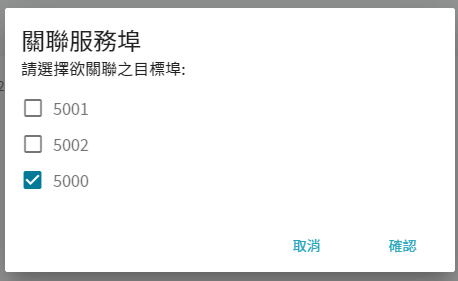
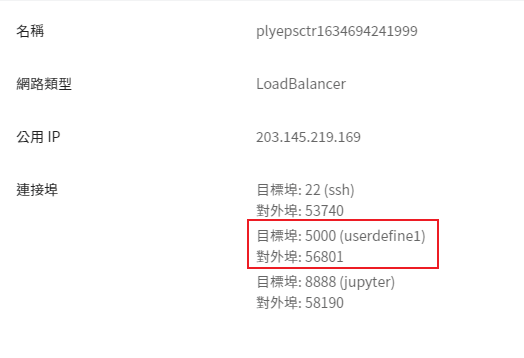
Step 3. Associate Container Service 5000 ports
After the container is created, open port 5000 of the container.
Step 4. Open Jupyter
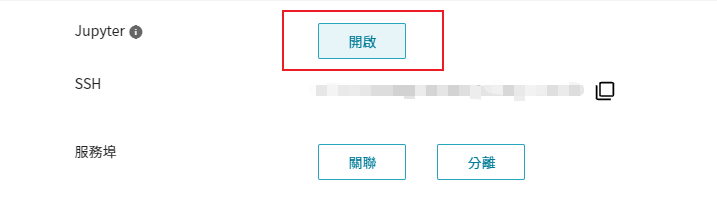
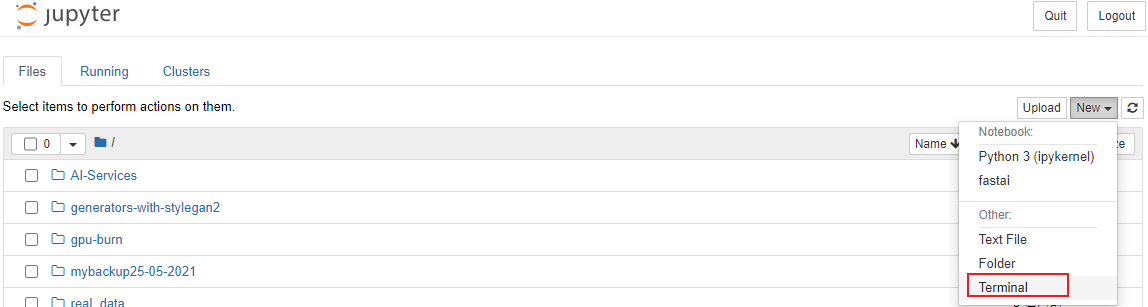
Connect the container using Jupyter Notebook and open the Terminal.
Step 5. View Token
Since TWCC's container already has Jupyter Notebook service, the token has been created. We need to check the token to provide it to Jupyter Lab.
$ Jupyter Notebook List
Step 6. Open Jupyter Lab on port 5000.
$ jupyter lab –port 5000

The terminal should remain open and not be closed.
Step 7. Open Jupyter Lab on the Web
The URL to enter is: https://$CCSIP.ccs.twcc.ai: $Step 3. Associate container service 5000 with external ports/ $Step 2. View the Token

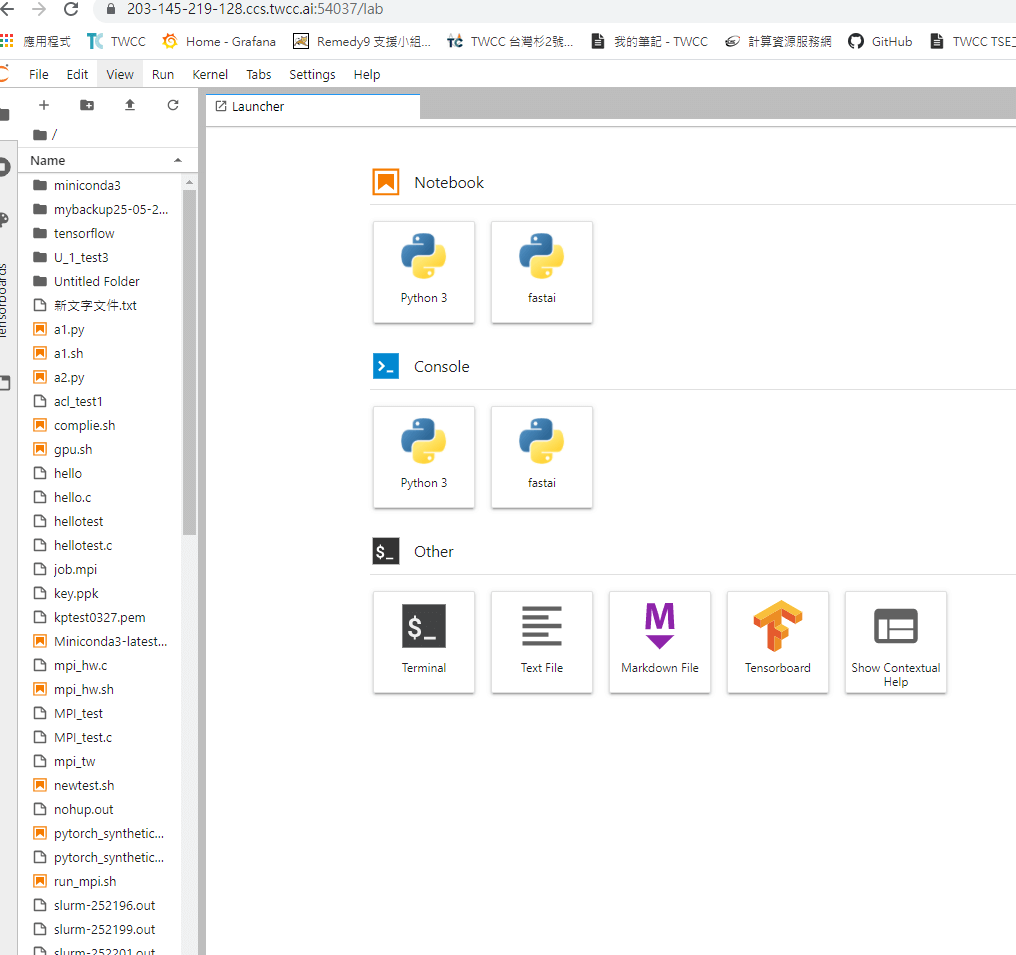
Image source: pexels