

The purpose of this article is to enable users of TWSC Ubuntu virtual computing instances, which do not have a default graphical desktop in their image files, to install a desktop and set up a VNC server, allowing users to remotely connect to the Ubuntu desktop from their local machine using VNC.
Prerequisites
- Please follow Establish virtual computing entities Establish VCS
- The VNC function will use port 5901, so be sure to enable port 5901 in the VCS security group. See [link/reference] for details. Security Groups Configure
Specification
- Operating system: Ubuntu 22.04
- Model: v.super
- IP: public IP
- port: 5901
Install Ubuntu Desktop
Step 1. Connect to VCS
Please follow Connecting to a Linux instance: This machine is running Windows. Connect to VCS for further operations.
Step 2. Desktop installation, VNC, Chinese language support
sudo apt update sudo apt install -y \
Step 3. Set VNC password and create xstartup
vncpasswd install -Dm755 /dev/stdin ~/.vnc/xstartup <<< $'#!/bin/sh\nunset SESSION_MANAGER\nunset DBUS_SESSION_BUS_ADDRESS\nexport LANG=zh_TW.UTF-8\nexport LC_ALL=zh_TW.UTF-8\nexport XKL_XMODMAP_DISABLE=1\nexec startxfce4''
Step 4. Set up automatic startup
install -Dm644 /dev/stdin ~/.config/systemd/user/vncserver@.service <<< $''[Unit]\nDescription=TigerVNC server on display %i\nAfter=network.target\n\n[Service]\nType=forking\nExecStart=/usr/bin/vncserver -localhost no -geometry 1920x1080 -depth 24 -SecurityTypes=VncAuth :%i\nExecStop=/usr/bin/vncserver -kill :%i\nRestart=on-failure\n\n[Install]\nWantedBy=default.target\n'' \ && systemctl --user daemon-reload \ && systemctl --user enable vncserver@1.service && (vncserver -kill :1 2>/dev/null || true) \ && rm -f /tmp/.X1-lock ~/.vnc/*:1.pid && systemctl --user reset-failed vncserver@1.service && systemctl --user start vncserver@1.service && sudo loginctl enable-linger ""$USER""
Step 5. Connect to the Ubuntu desktop locally using VNC Viewer
This article is using TightVNC Viewer As an example, users can perform the operation according to their preferred VNC Viewer.
1. Launch TightVNC Viewer
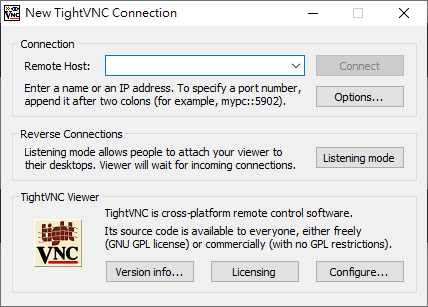
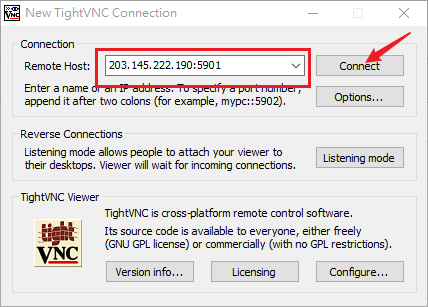
2. Enter the VCS IP address and port 5901, then press Enter. Connect
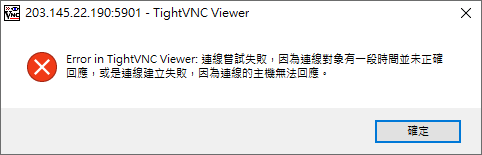
※If the following error message appears, it means that the security group has not configured a 5901 connection rule or that the firewall within the VCS is blocking the connection.
3. Input Step 3The password set by VNC
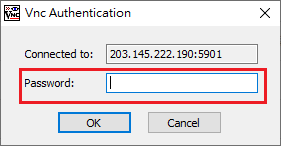
Once successful, you can connect to the Ubuntu desktop.
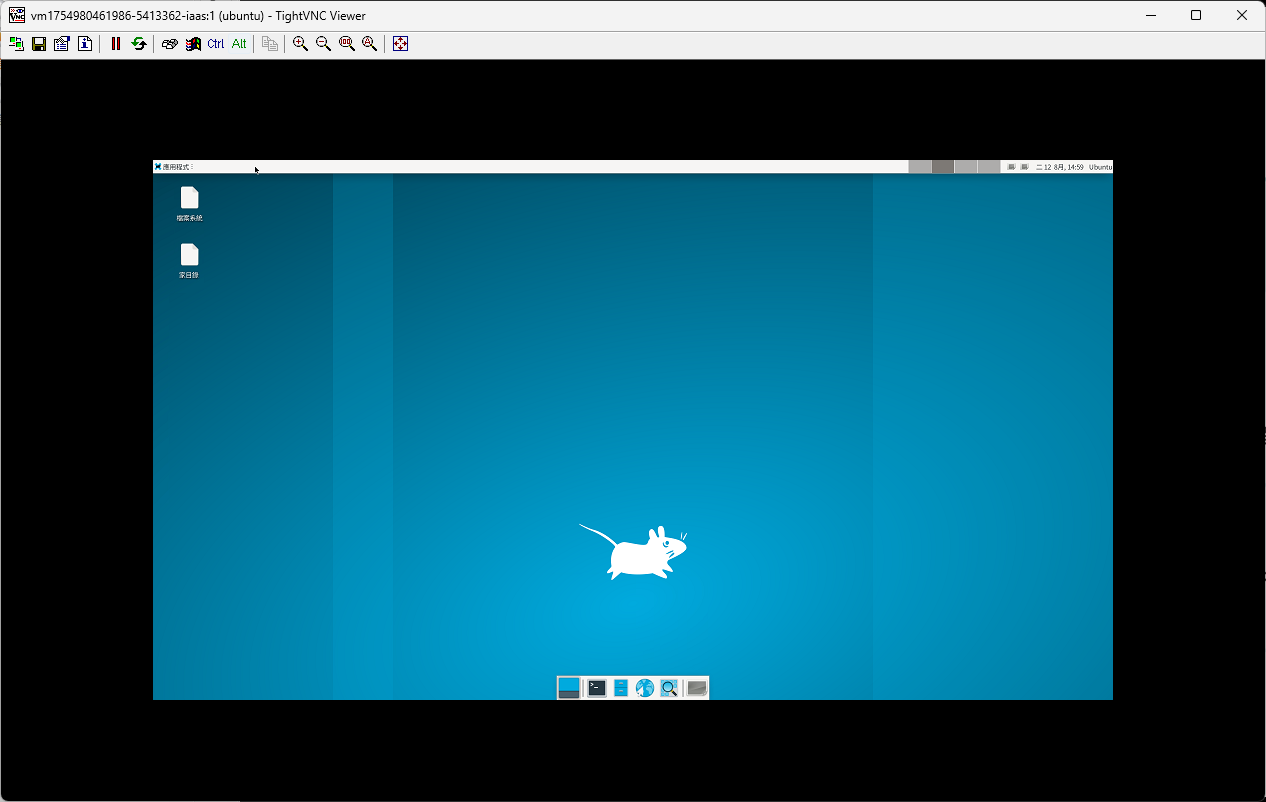
※Important Notes:
VNC passwords only require 6 characters, and if set too simply, they are easily cracked. It is recommended that when using VNC, strict rules be set for the security group CIDR and operating system firewall for port 5901 to reduce the risk of cybersecurity incidents.